
1 / 11
Chat widget
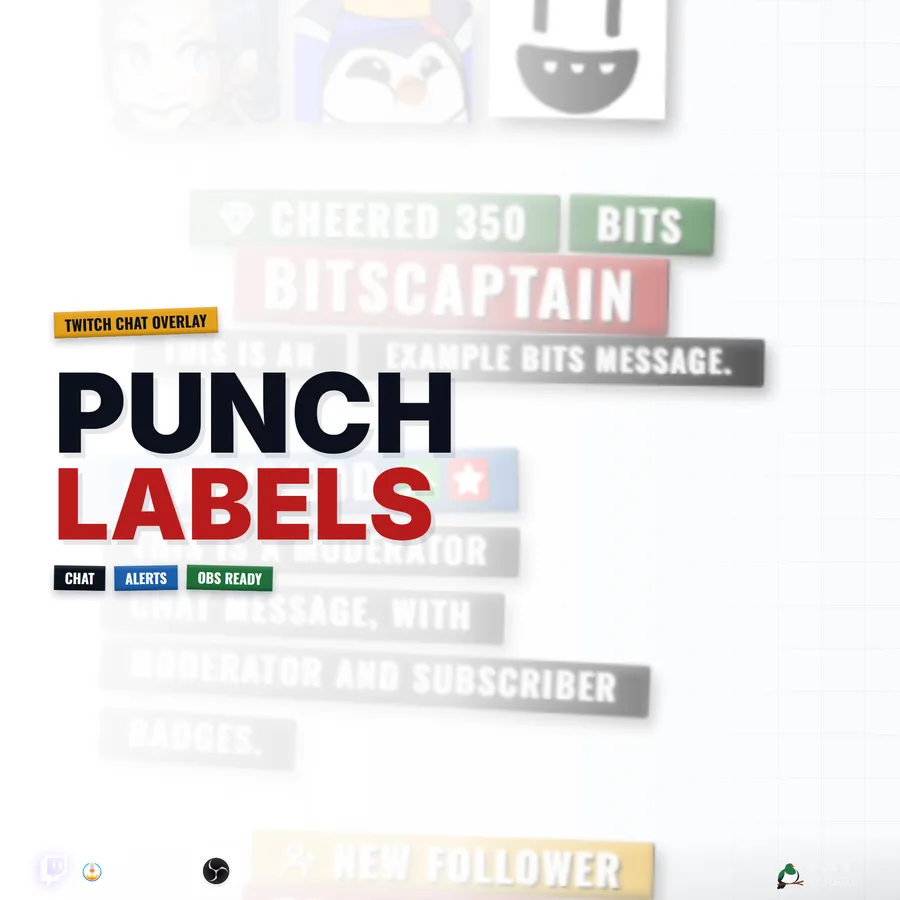
Punch Labels Chat
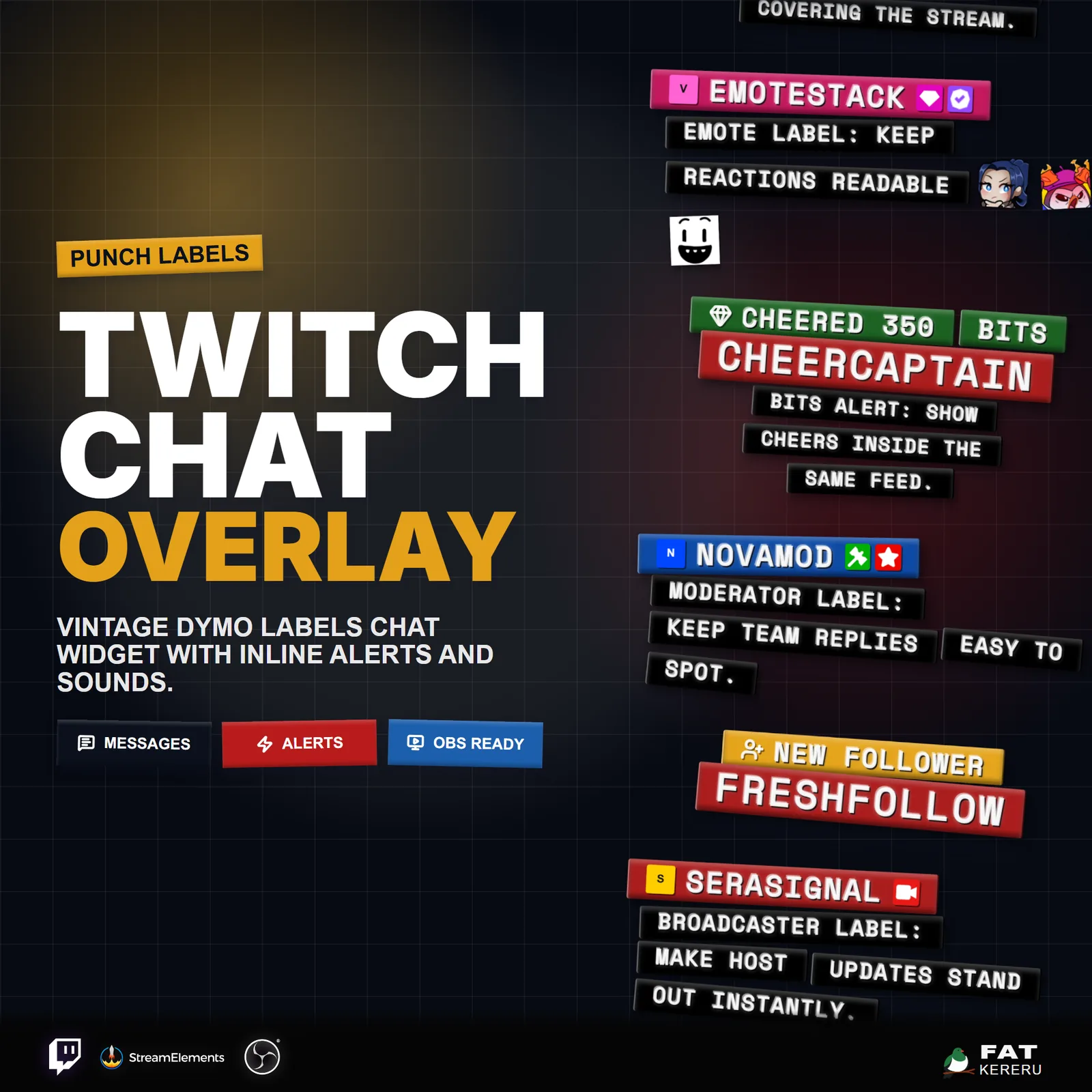
An embossed label-maker Twitch chat and alerts feed with tactile motion and configurable sounds.
What it doesv1.0
Punch Labels Chat turns Twitch messages and events into stacked embossed strips inspired by vintage label makers. Each entry feels physical and immediate, giving chat a distinctive look without sacrificing legibility.
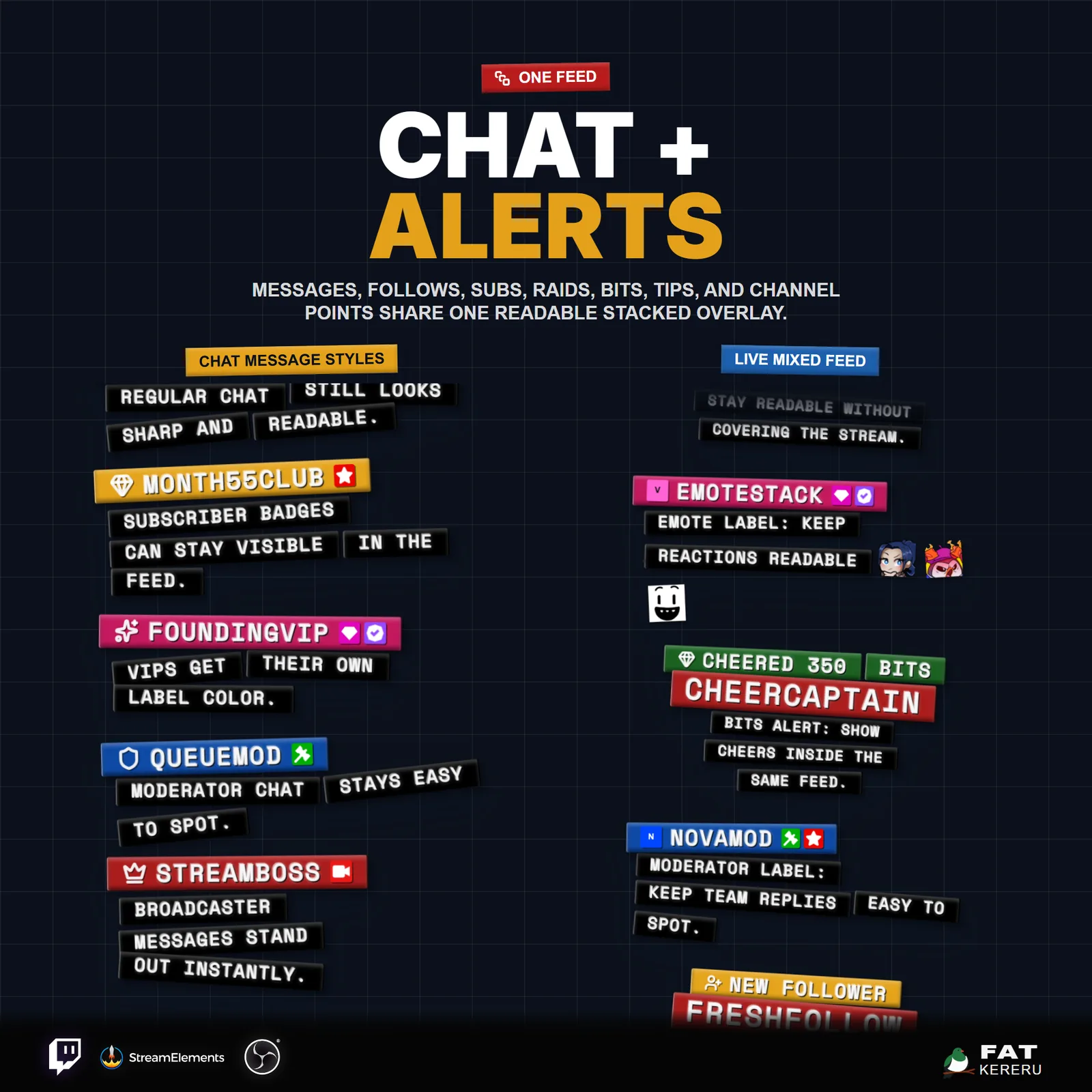
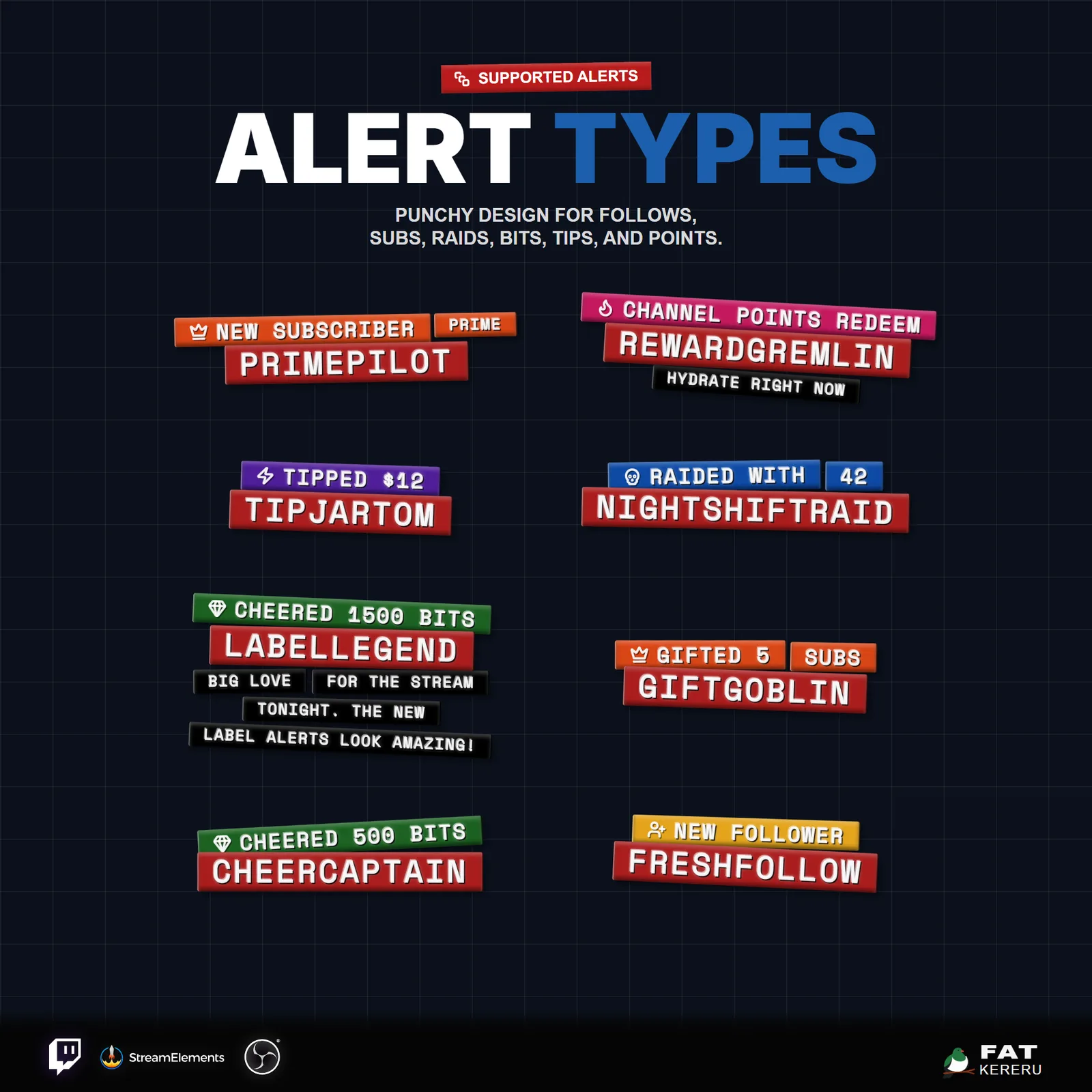
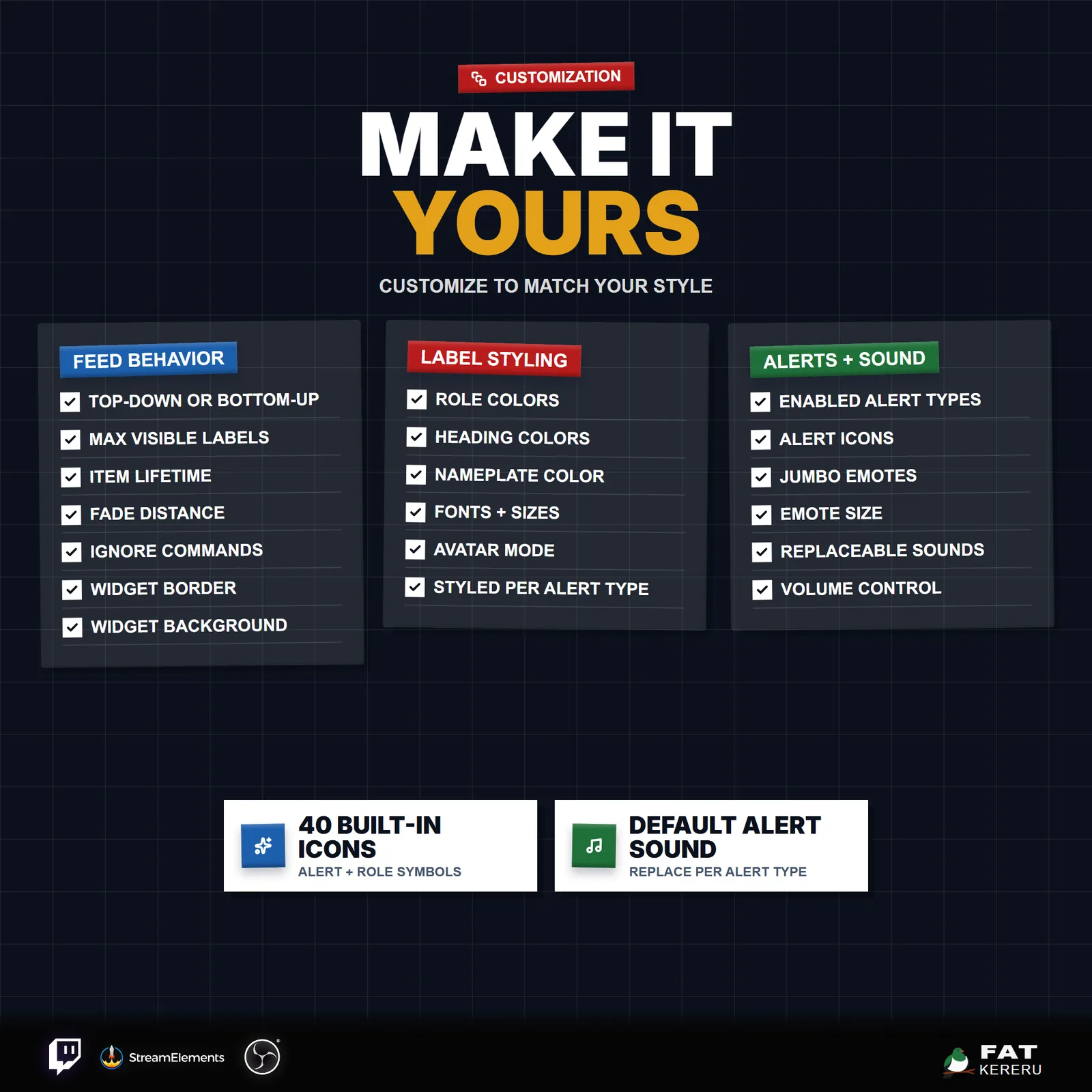
Normal messages, emotes, follows, subscriptions, raids, cheers, tips, and channel point redemptions all use the same visual language. Feed direction, avatar mode, colors, sizing, filters, pacing, and individual sound slots are configurable through StreamElements.
How it works
- 01Messages are stamped on screen
Viewer chat appears as tactile embossed label strips with names, badges, emotes, and avatars.
- 02Alerts get matching labels
Enabled stream events use the same label-maker style, with a clear heading and viewer message.
- 03The feed keeps itself tidy
Choose the direction, lifetime, spacing, and maximum number of items shown at once.
- 04Change the tape drawer
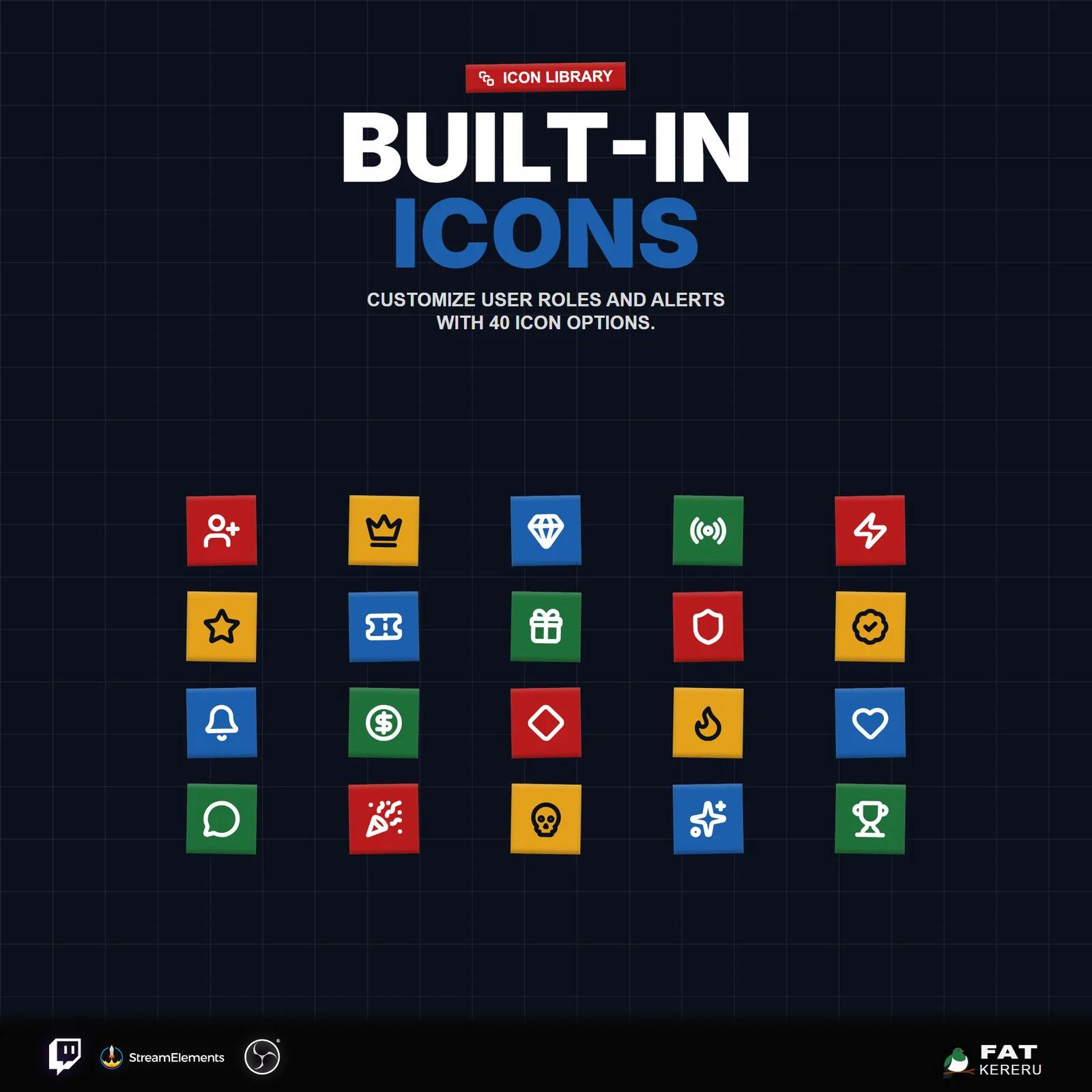
Pick name-label and alert colors, icons, wording, sounds, and separate styles for each event type.
Works with
- Twitch
- StreamElements
- Any streaming software with browser source



Features
- Embossed vintage label-maker visual style
- Combined chat, follows, subs, raids, bits, tips, and redemptions
- Inline alert labels that match the message feed
- Bottom-up or top-down feed direction
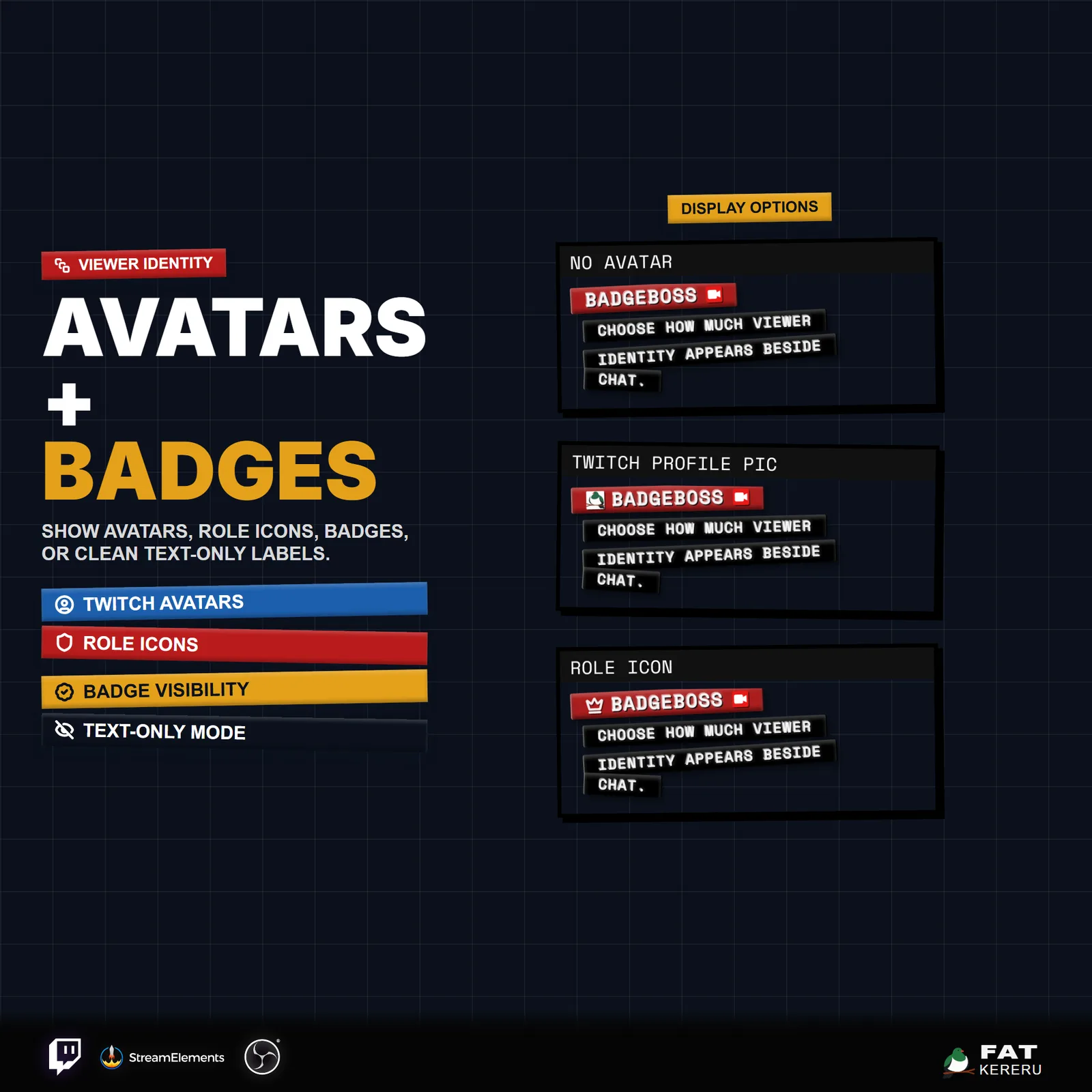
- Twitch profile photos, role icons, or hidden avatars
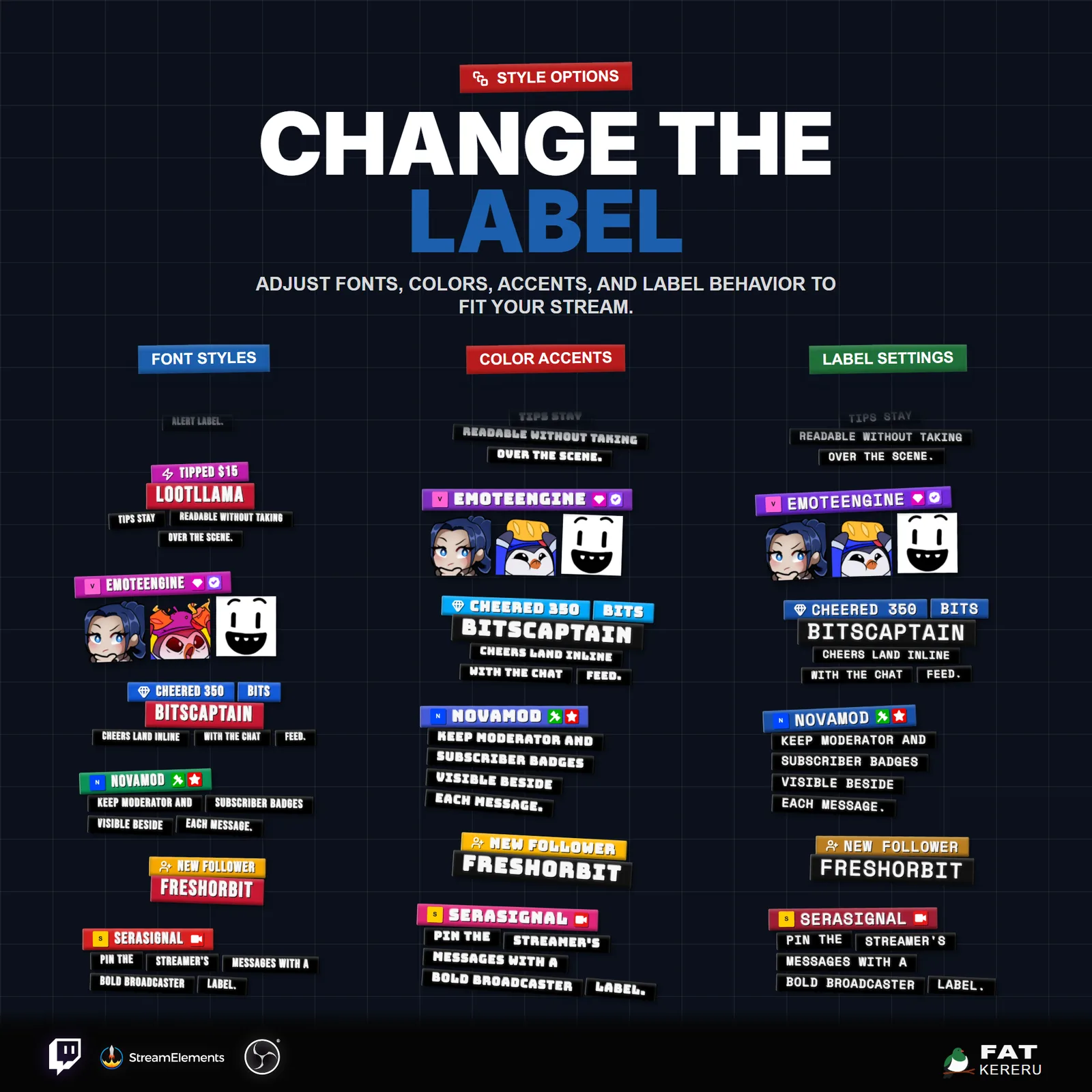
- Custom name-label and alert-heading colors
- Separate replaceable sound slots for chat and alert families
- Jumbo emotes, command filtering, and built-in feed pacing
What you get
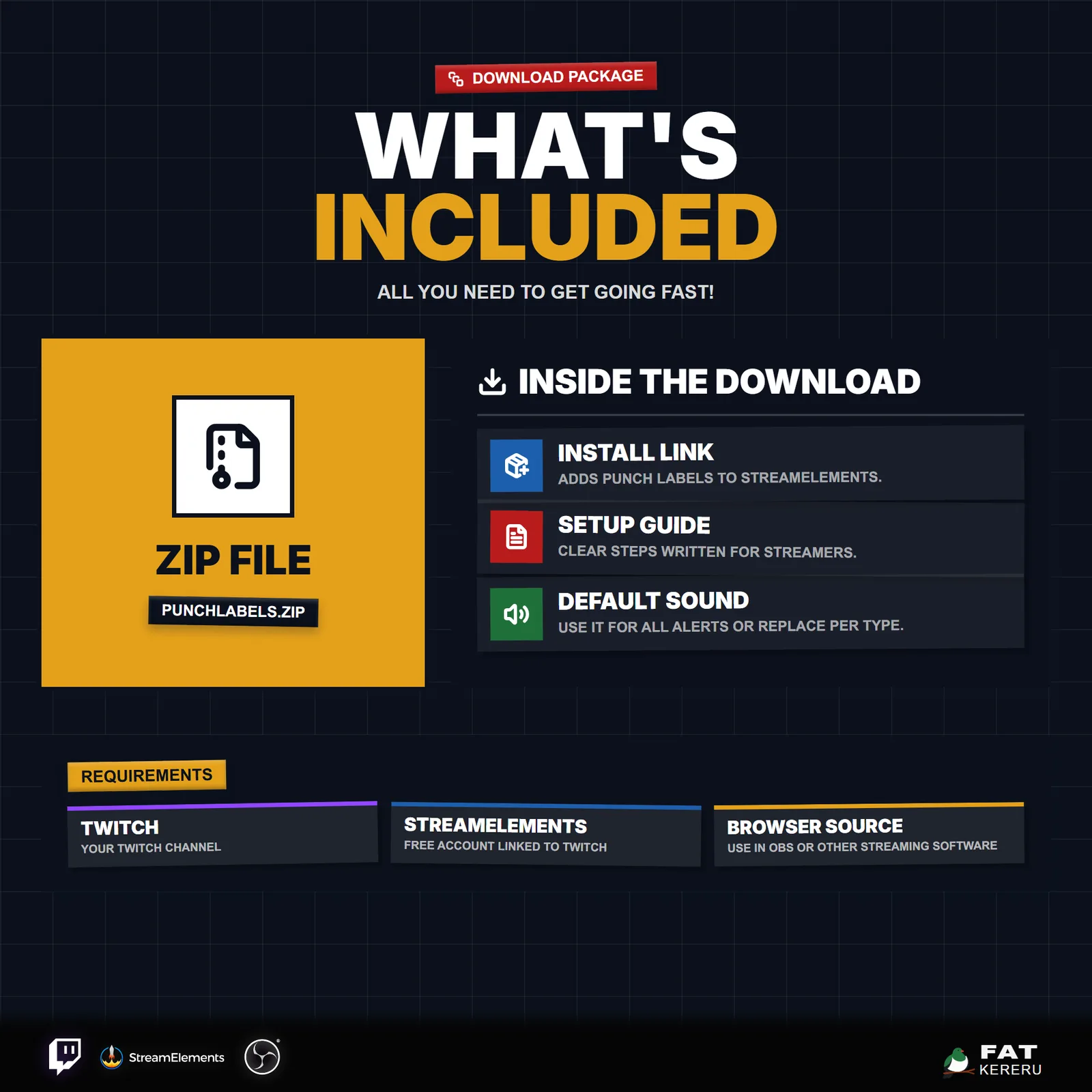
The product package includes everything needed to install, customize and keep the widget running.
- Quick Start HTML
Local start page with links to the installer and current online user guide.
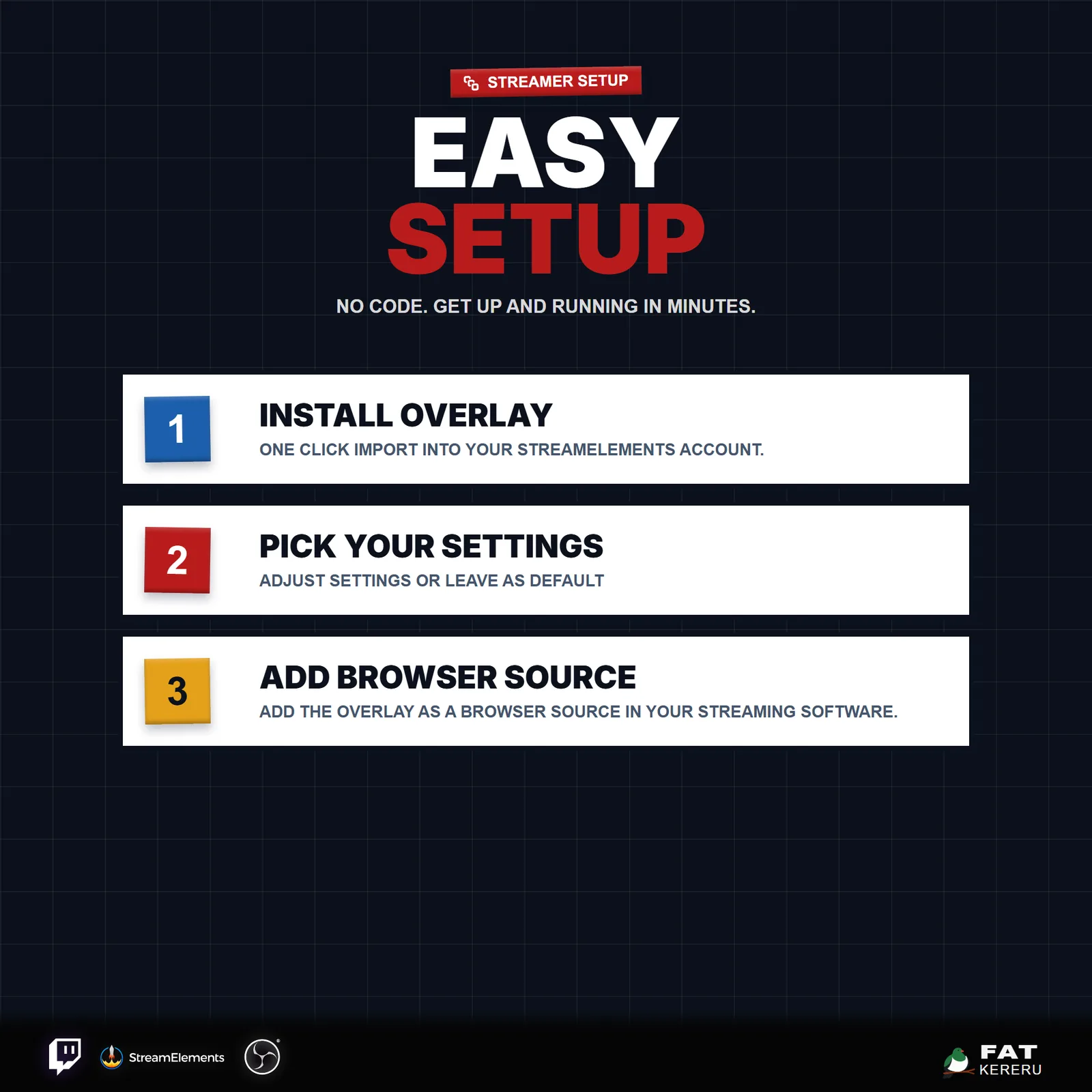
- Easy install
Add the widget to your StreamElements account.
- Included sounds
One included default sound that can be replaced in the widget.
Settings
These are the controls you’ll find in StreamElements. Everything is adjusted with simple fields, switches, color pickers and dropdowns.
Layout & Frame9 settings
- Feed Direction
- Max Visible Items
- Item Lifetime (Seconds, 0 = Never Expire)
- Edge Fade Distance (px)
- Avatar Mode (Hidden removes left box)
- Show Widget Border
- Widget Border Color
- Show Widget Background
- Widget Background Color
Behavior9 settings
- Ignored Usernames (comma-separated)
- Ignore Commands Starting With !
- Enable Chat Messages
- Enable Subs
- Enable Bits
- Enable Raids
- Enable Follows
- Enable Tips
- Enable Channel Points
Sounds13 settings
- Enable Sounds
- Sound Volume
- Sound Cooldown (ms)
- Chat Sound
- Follow Sound
- New Sub Sound
- Resub Sound
- Gifted Sub Sound
- Community Gift Sub Sound
- Bits Sound
- Raid Sound
- Tip Sound
- Channel Points Sound
Chat Common11 settings
- Heading Font
- Body Font
- Chat Heading Font Size (px)
- Body Font Size (px)
- Message Tape Color
- Show Badges
- Show Jumbo Emotes
- Emote Scale (%)
- Subscriber Chat Name Tape Color
- Subscriber Icon Code
- Default Role Icon Code
Default Chat1 setting
- Default Chat Name Tape Color
Broadcaster Chat2 settings
- Broadcaster Icon Code
- Broadcaster Chat Name Tape Color
Moderator Chat2 settings
- Moderator Icon Code
- Moderator Chat Name Tape Color
VIP Chat2 settings
- VIP Icon Code
- VIP Chat Name Tape Color
Alert Common2 settings
- Alert Username Tape Color
- Alert Heading Font Size (px)
Follow Alerts2 settings
- Follow Heading Tape Color
- Follow Alert Icon Code
Subscriber Alerts2 settings
- Subscriber Heading Tape Color
- Subscriber Alert Icon Code
Bits Alerts2 settings
- Bits Heading Tape Color
- Bits Alert Icon Code
Raid Alerts2 settings
- Raid Heading Tape Color
- Raid Alert Icon Code
Tip Alerts2 settings
- Tip Heading Tape Color
- Tip Alert Icon Code
Channel Points Alerts2 settings
- Channel Points Heading Tape Color
- Channel Points Alert Icon Code