
1 / 14
Chat widget
Retro Game Chat
A pixel-art Twitch chat and alerts feed with CRT styling, customizable sounds, and a bonus companion panel.
What it doesv1.2.0
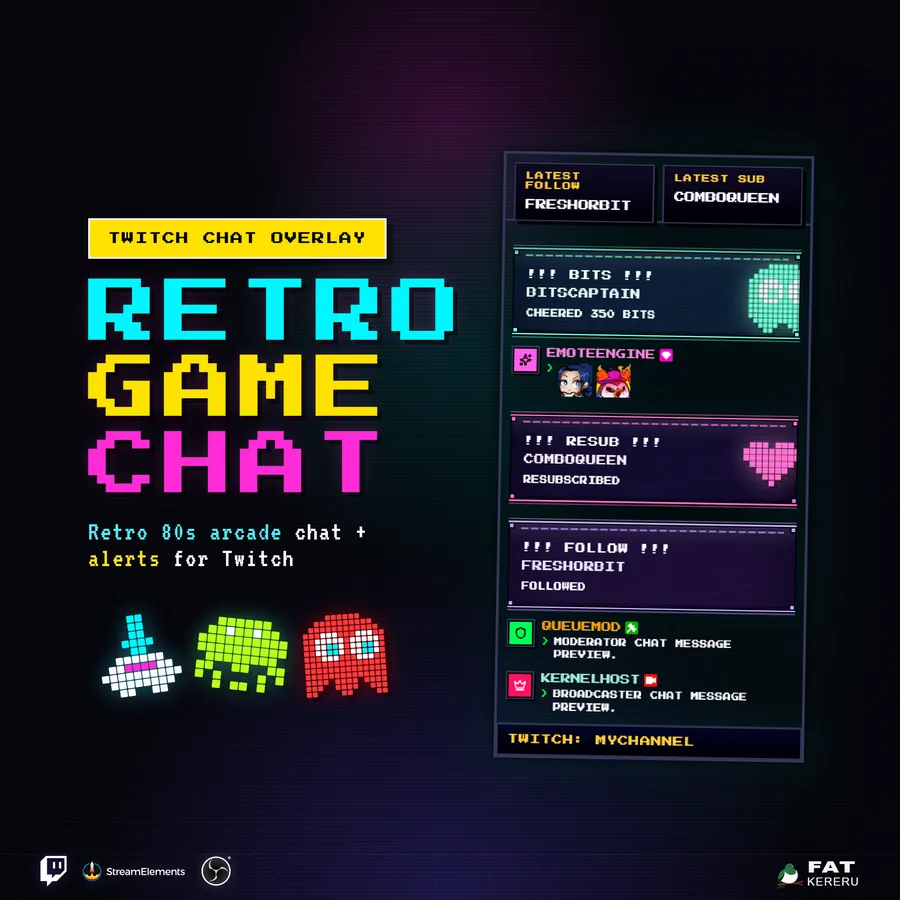
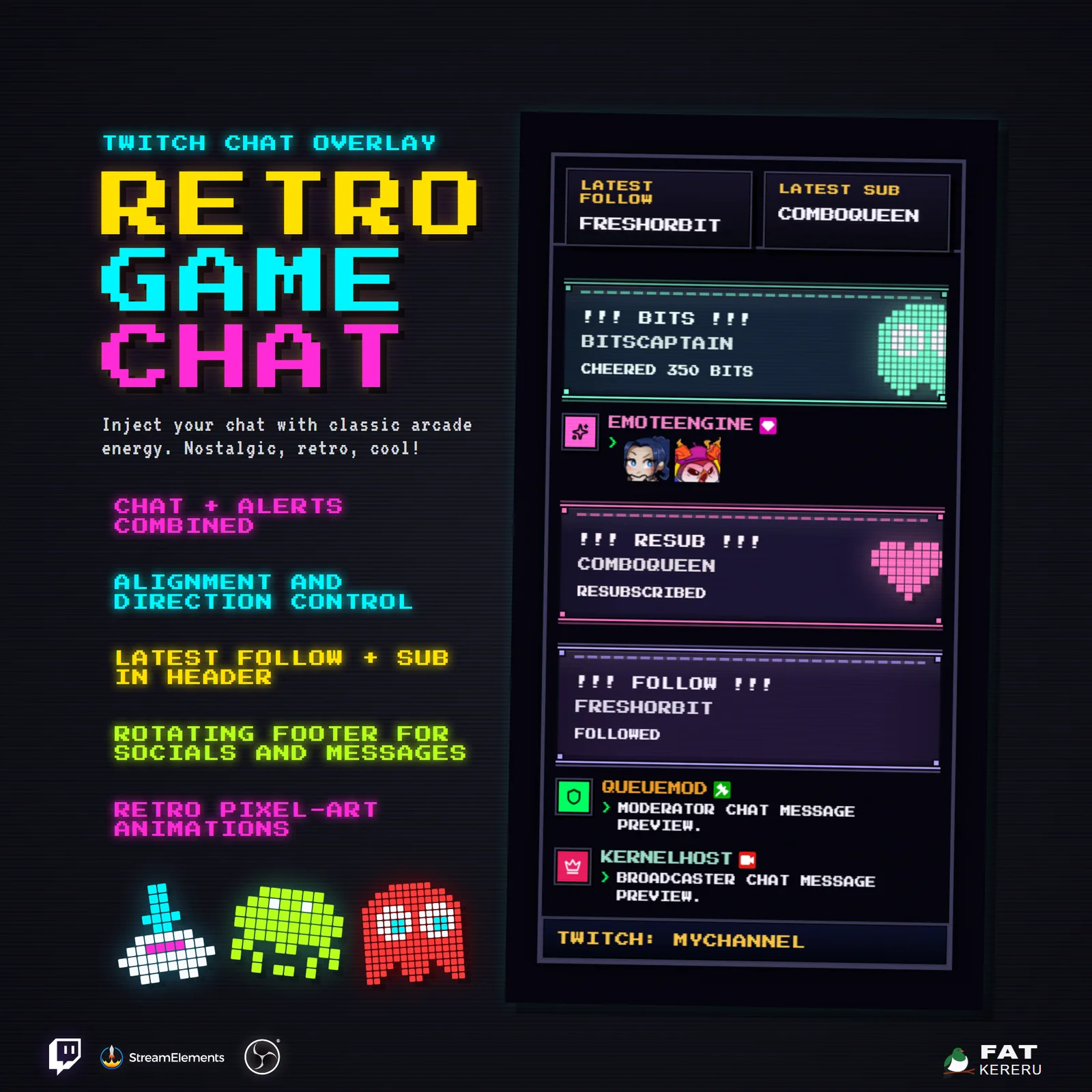
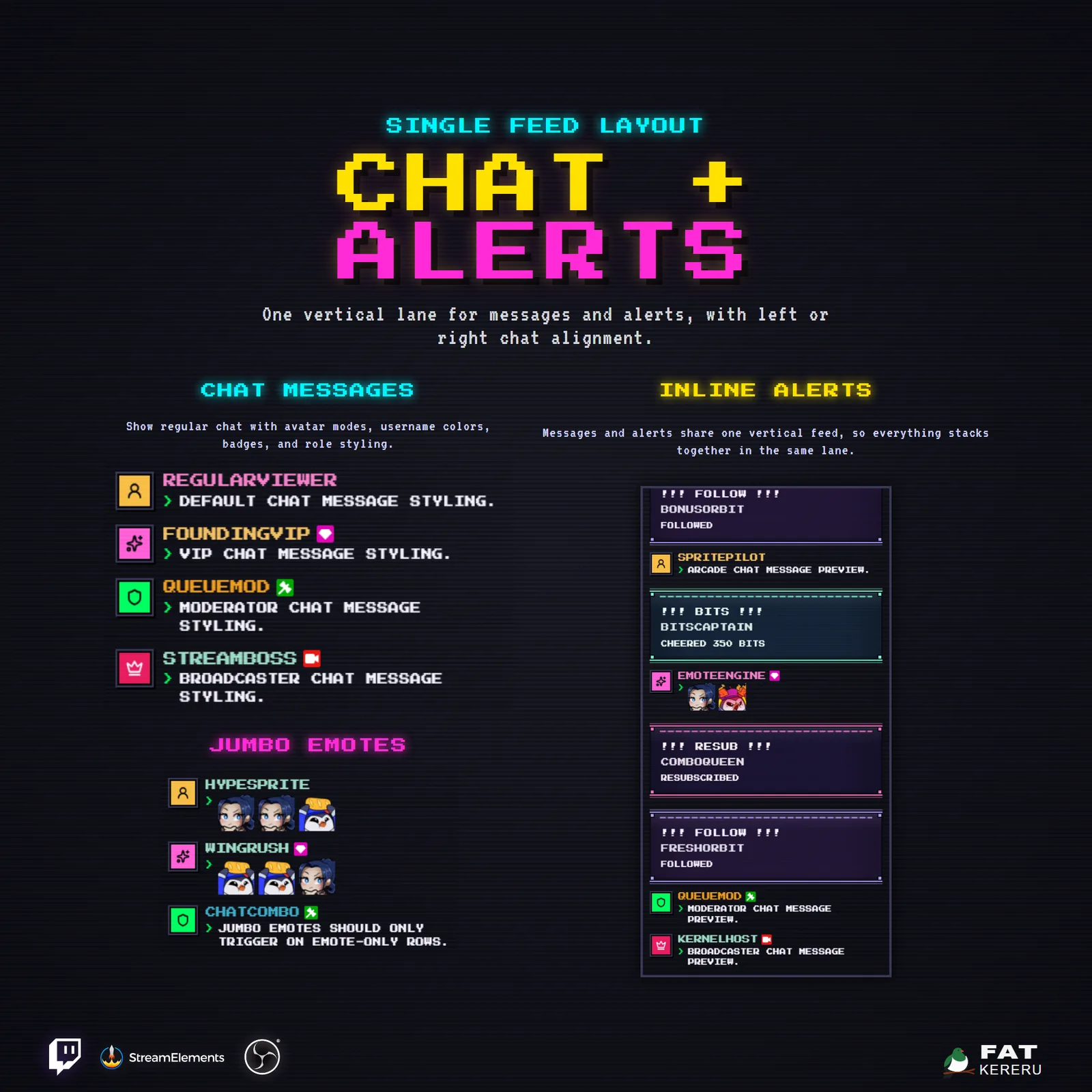
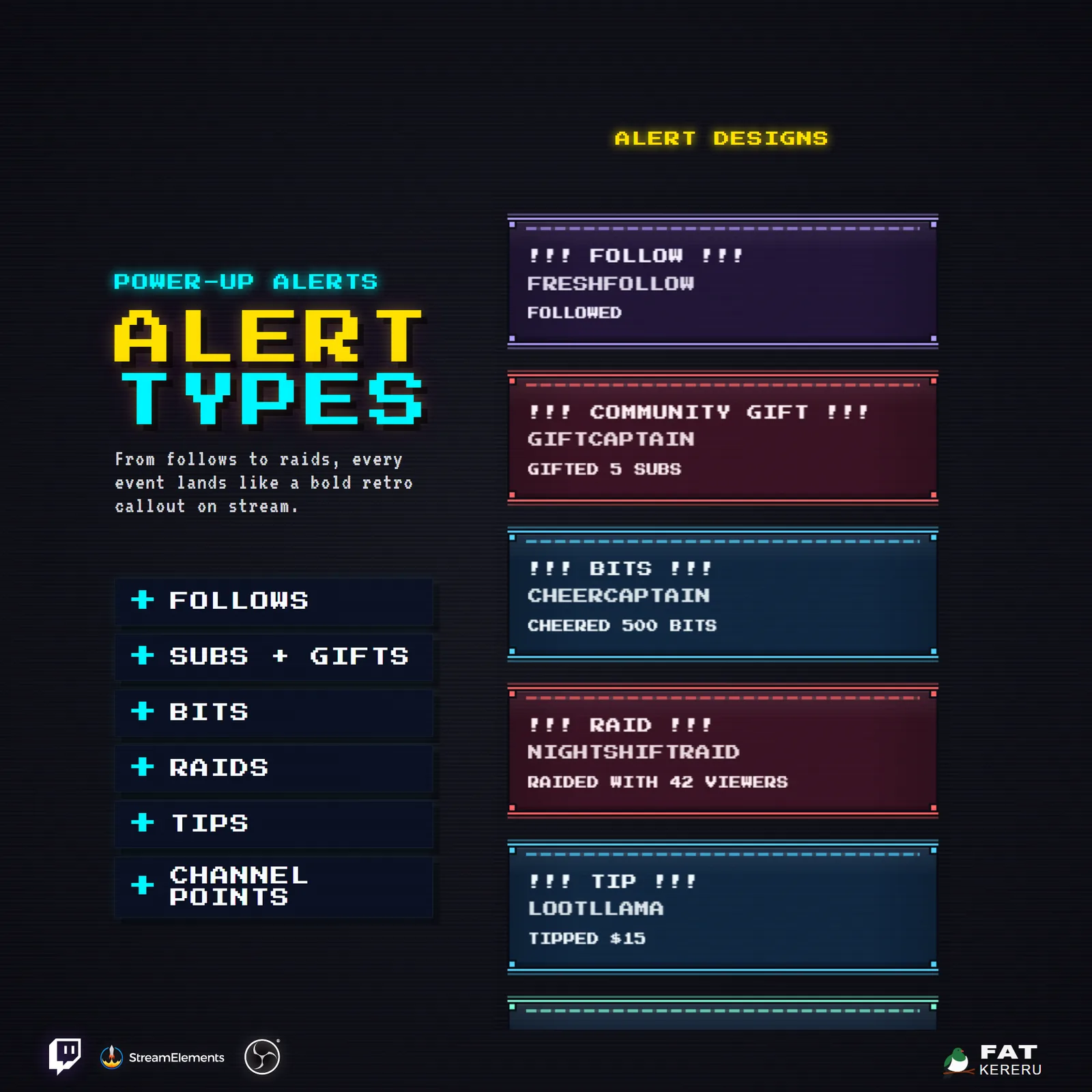
Retro Game Chat makes your chat look like it belongs in a 1980s arcade. Messages arrive as compact terminal-style rows, while follows, subscriptions, raids, cheers, tips, and channel point redemptions land as animated pixel-art alert cards in the same feed. Chat and every supported alert type have their own replaceable sound, backed by overall volume and cooldown controls for busy moments.
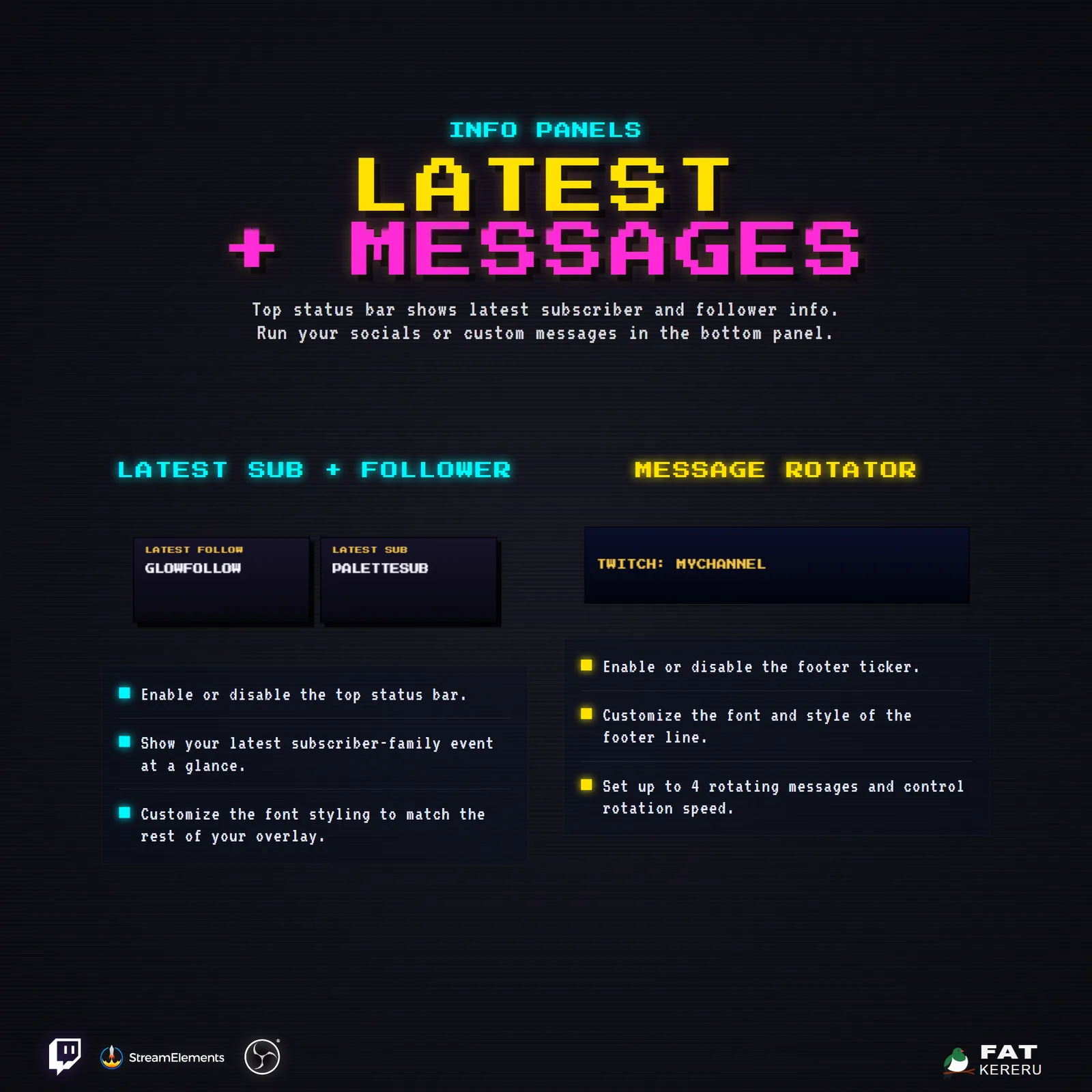
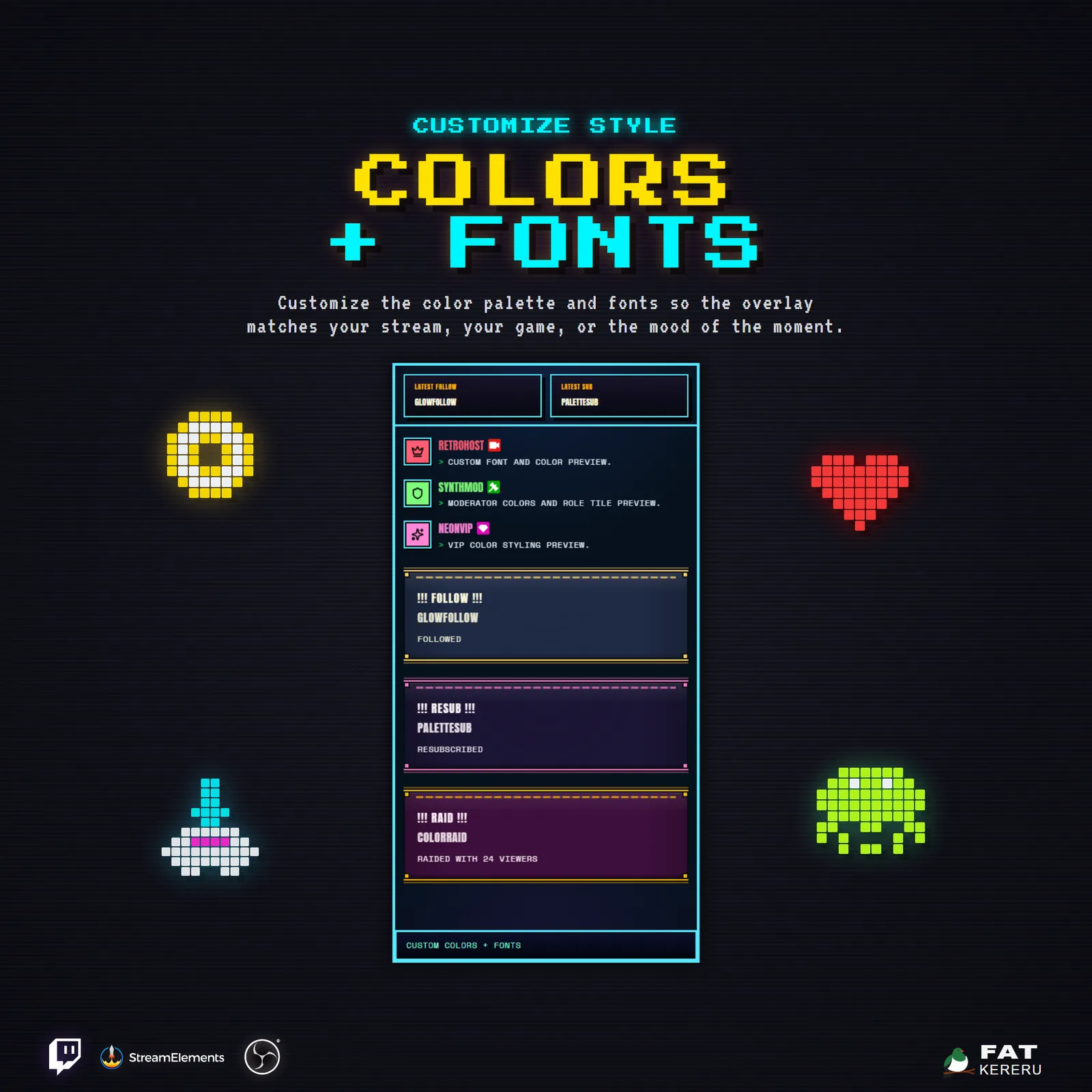
The included companion panel extends the arcade look to your latest follower, subscriber, tip, and cheer activity. Both overlays are designed to remain readable over gameplay, with configurable colors, icons, timing, transparent presentation options, and flexible border controls; sound playback belongs to the main chat-and-alert widget.
How it works
- 01Chat appears on screen
Viewer messages enter a pixel terminal feed as they are sent.
- 02Stream events join the feed
Enabled follows, subscriptions, raids, cheers, tips, and redemptions become animated arcade cards.
- 03The feed keeps moving
Messages stack in your chosen direction and clear automatically using your timing and visible-item settings.
- 04Add the companion panel
The optional matching panel displays your latest follower, subscriber, tip, and cheer activity in a horizontal or vertical layout.
Works with
- Twitch
- StreamElements
- Any streaming software with browser source



Features
- Unified Twitch chat and stream alerts feed
- Retro terminal rows with CRT scanlines and typewriter effects
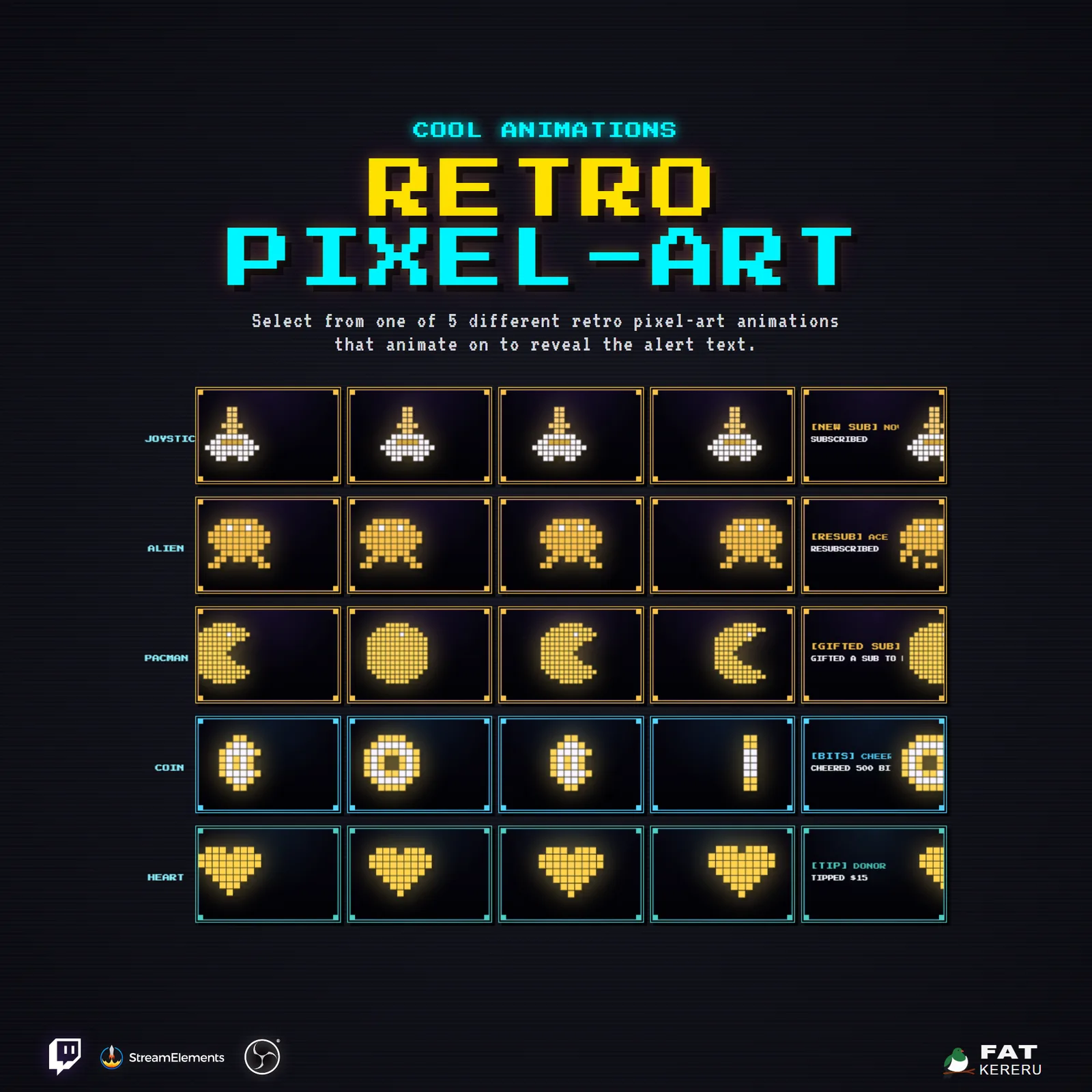
- Animated pixel characters for follows, subs, raids, bits, tips, and redemptions
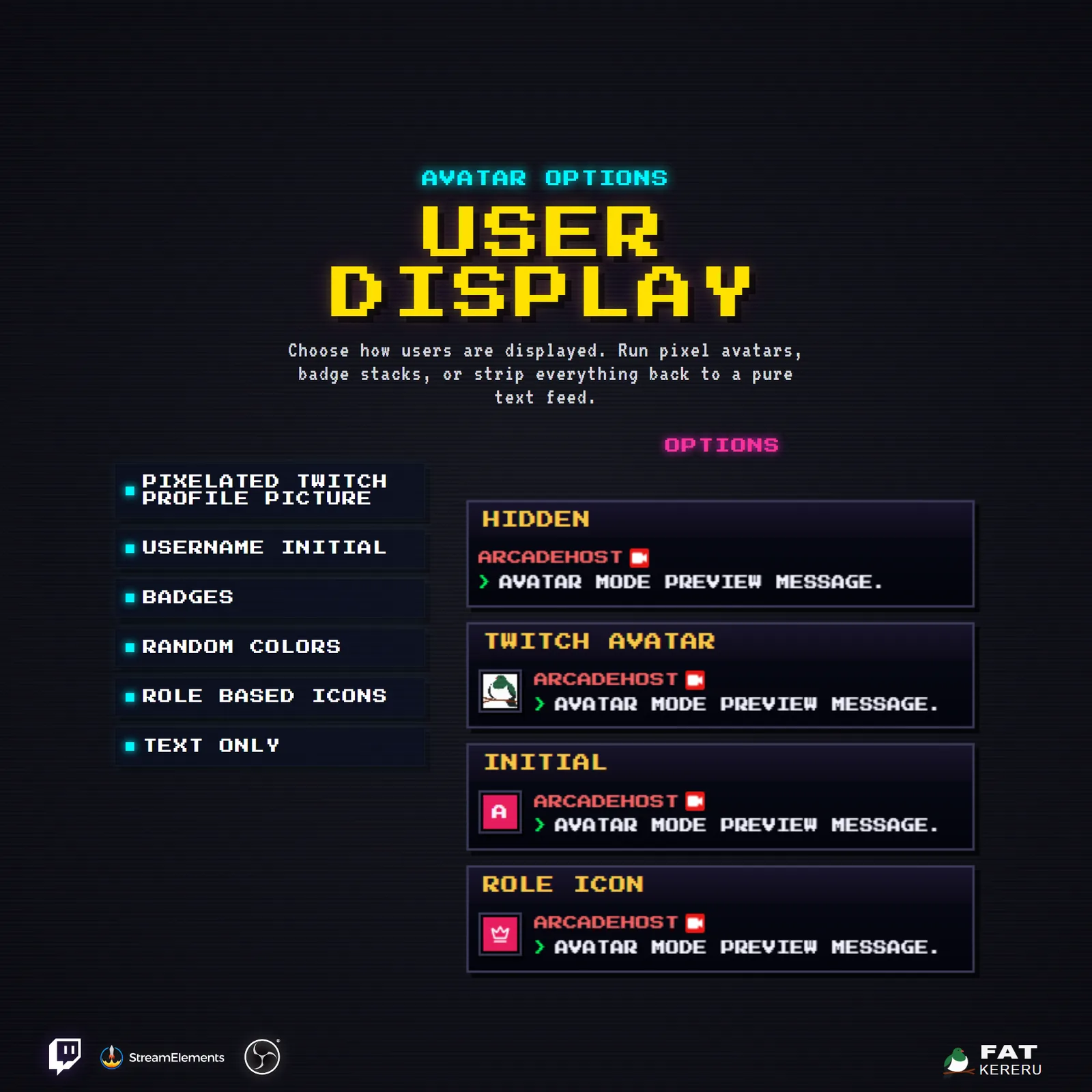
- Twitch avatars, badges, emotes, and jumbo emote messages
- Bonus companion panel for latest follower, subscriber, tip, and cheer activity
- Custom colors, fonts, icons, timing, feed direction, and latest-activity labels
- Transparent widget, header, and footer backgrounds with independent border and shadow controls
- Replaceable sounds for chat and every supported alert, with overall volume and cooldown controls
What you get
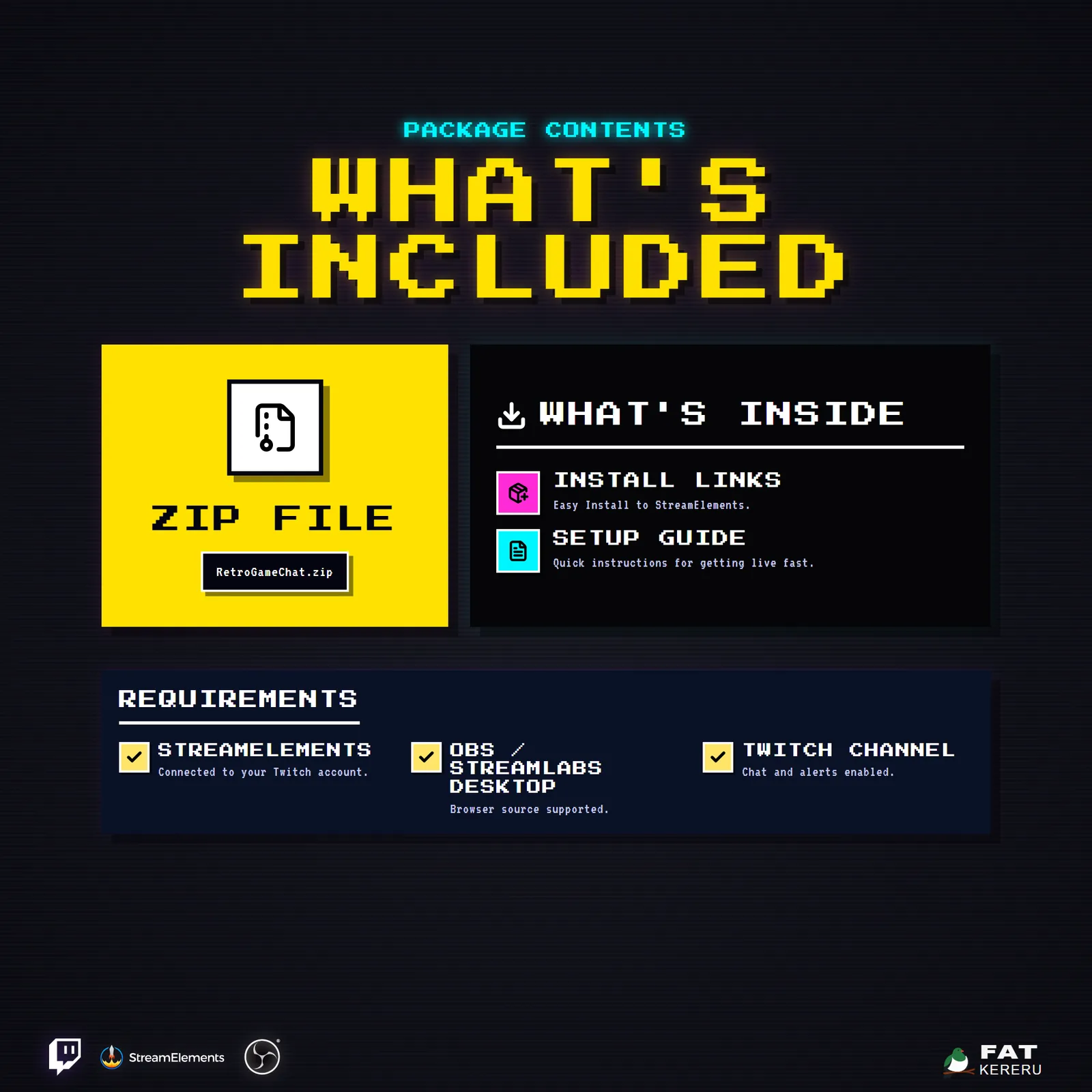
The product package includes everything needed to install, customize and keep the widget running.
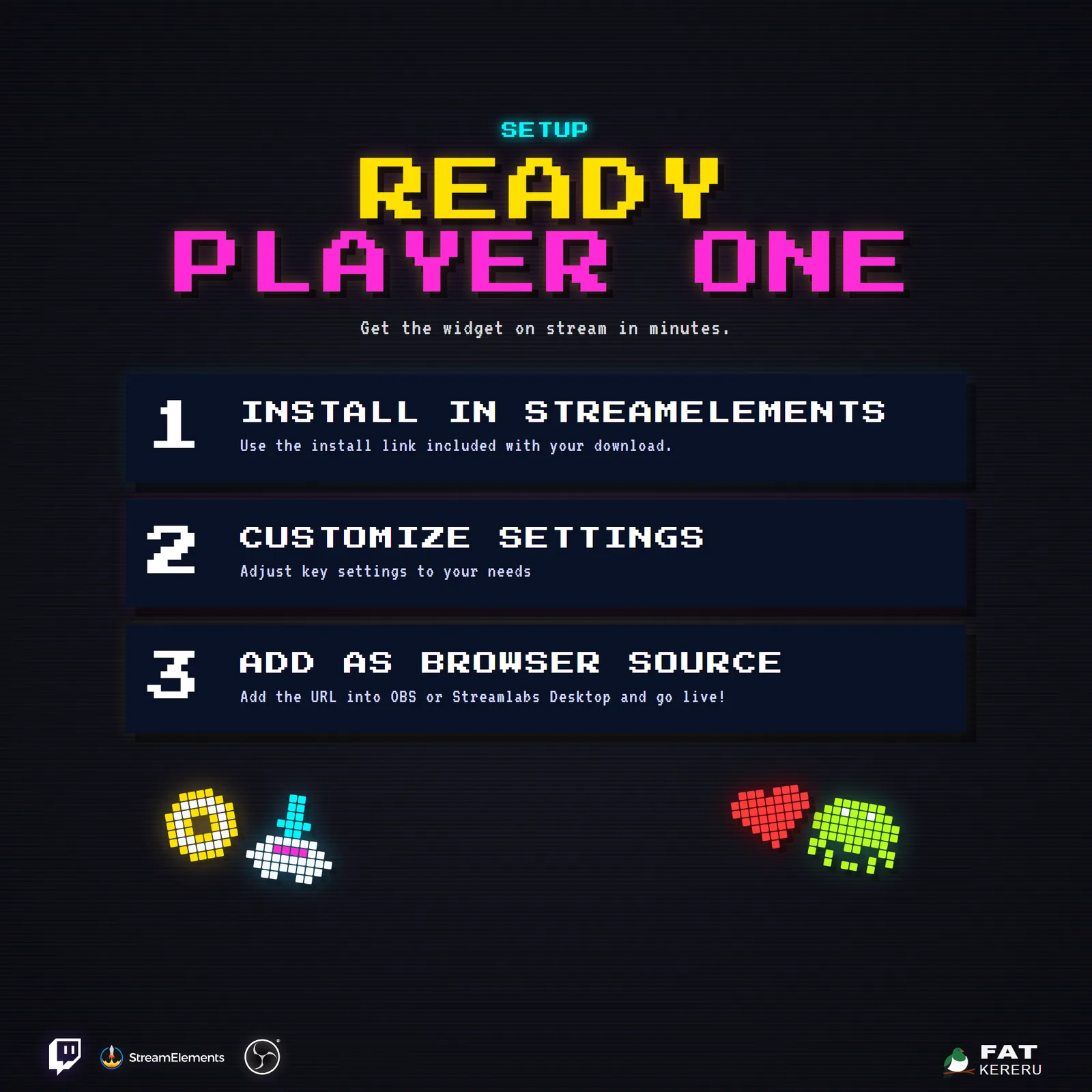
- Two Quick Start HTML pages
Separate local start pages for the main widget and companion panel, with installer and online guide links.
- Main widget installer
Add the main widget to your StreamElements account.
- Companion panel installer
Add the companion panel to your StreamElements account.
Settings
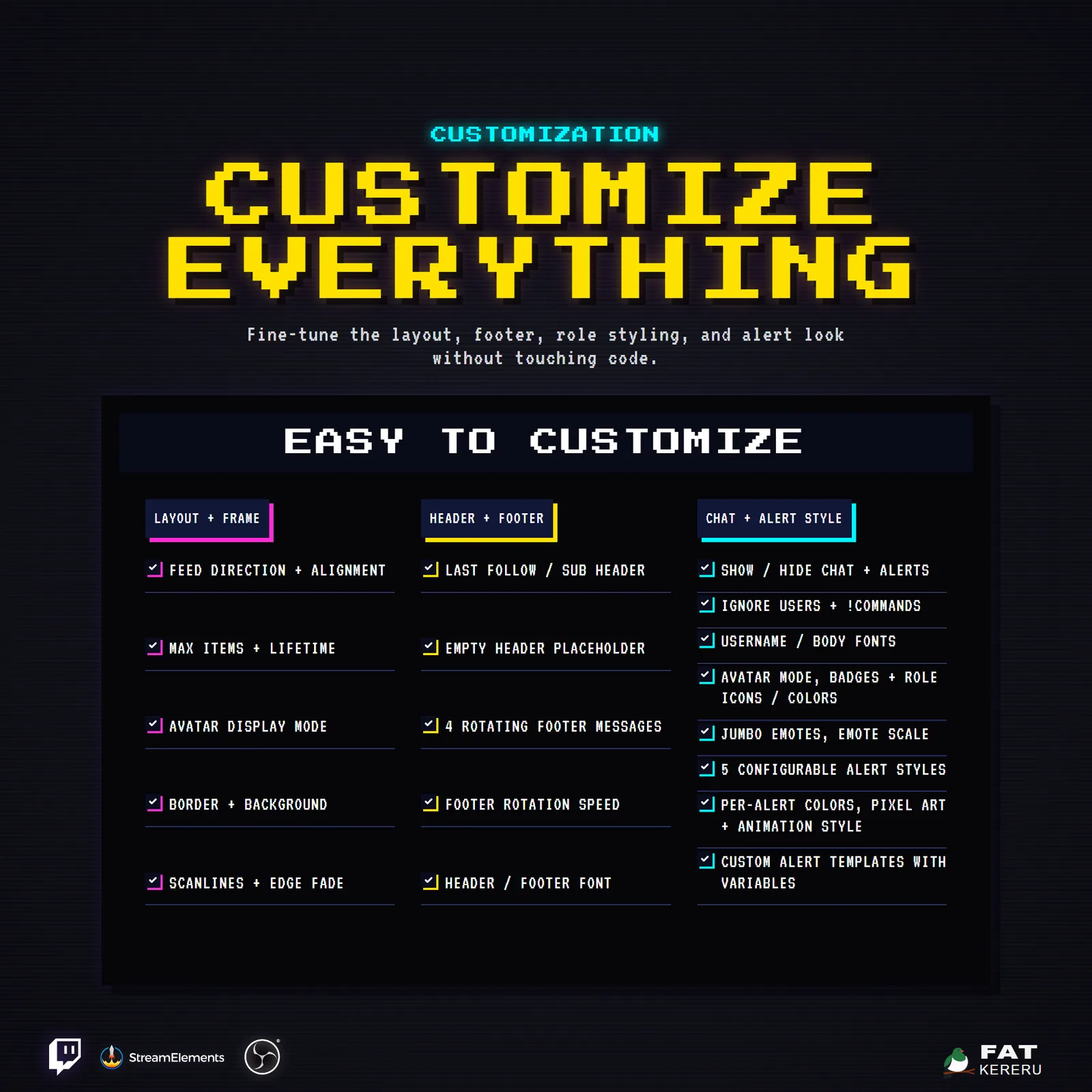
These are the controls you’ll find in StreamElements. Everything is adjusted with simple fields, switches, color pickers and dropdowns.
Layout & Frame12 settings
- Feed Direction
- Overall Alignment
- Max Visible Items
- Item Lifetime (Seconds, 0 = Never Expire)
- Edge Fade Distance (px)
- Avatar Mode (Hidden removes left box)
- Show Widget Border
- Widget Border Color
- Show Widget Background
- Widget Background Color
- Show Scanlines
- Show Feed Edge Fade
Status Header10 settings
- Show Status Header
- Show Header Borders & Shadow
- Header Empty Placeholder Text
- Latest Follow Label
- Latest Subscriber Label
- Status Header Font
- Status / Footer Font Size (px)
- Status Header Background Color
- Status Header Label Color
- Status Header Value Color
Footer Rotator10 settings
- Show Footer Rotator
- Show Footer Border & Shadow
- Footer Rotator Message 1
- Footer Rotator Message 2
- Footer Rotator Message 3
- Footer Rotator Message 4
- Footer Rotator Speed (Seconds)
- Footer Rotator Font
- Footer Rotator Background Color
- Footer Rotator Text Color
Behavior9 settings
- Ignored Usernames (comma-separated)
- Ignore Commands Starting With !
- Enable Chat Messages
- Enable Subs
- Enable Bits
- Enable Raids
- Enable Follows
- Enable Tips
- Enable Channel Points
Sounds13 settings
- Enable Sounds
- Sound Volume
- Sound Cooldown (ms)
- Chat Sound
- Follow Sound
- New Sub Sound
- Resub Sound
- Gifted Sub Sound
- Community Gift Sub Sound
- Bits Sound
- Raid Sound
- Tip Sound
- Channel Points Sound
Chat - Common11 settings
- Enable Pixel Avatars
- Enable Typewriter Text
- Use Auto Username Colors
- Heading Font
- Body Font
- Header / Username Font Size (px)
- Body / Ticker Font Size (px)
- Avatar Border Color
- Show Badges
- Show Jumbo Emotes
- Emote Scale (%)
Chat - Default4 settings
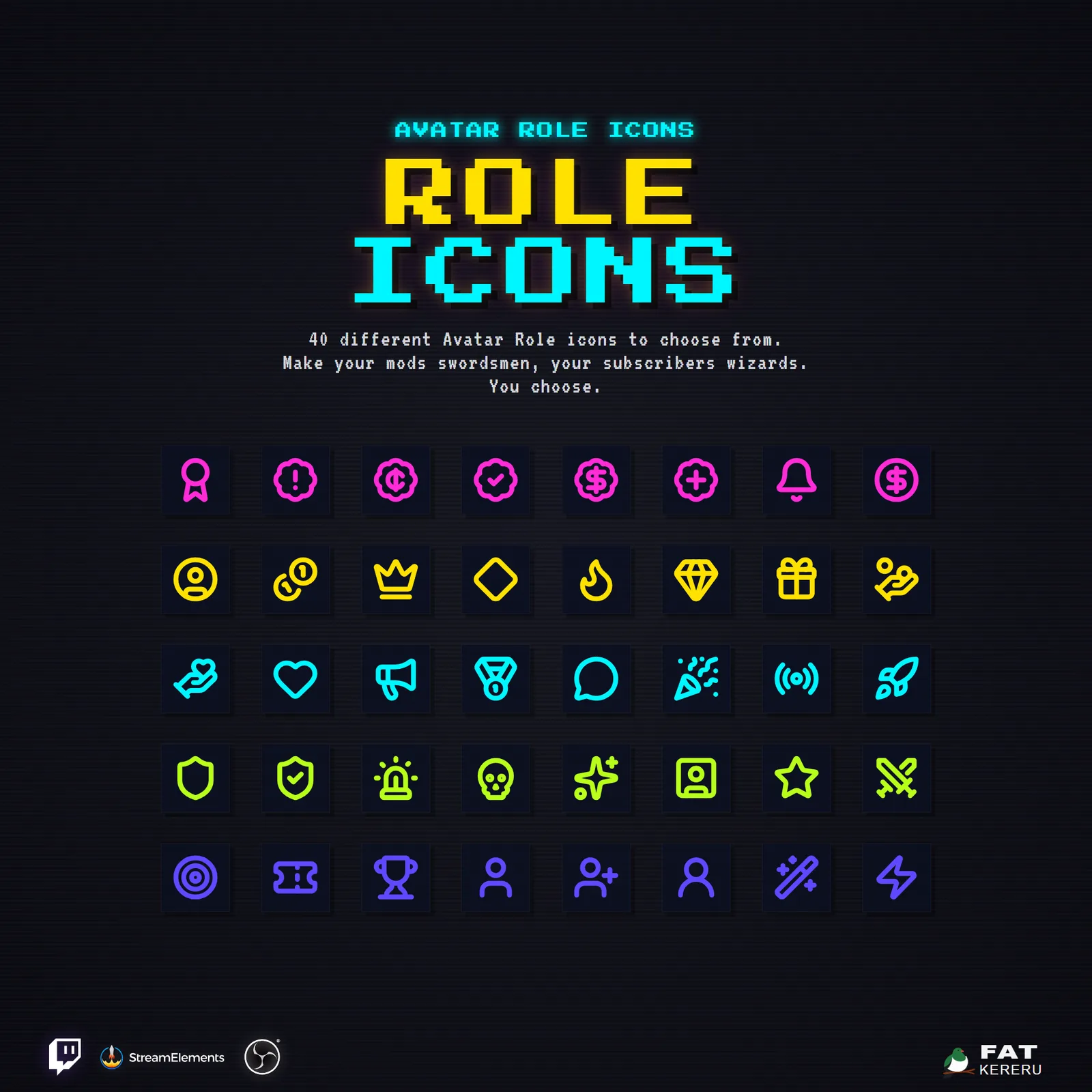
- Default Role Icon Code
- Default Role Background Color
- Default Username Color
- Default Chat Text Color
Chat - Broadcaster3 settings
- Broadcaster Icon Code
- Broadcaster Role Background Color
- Broadcaster Username Color
Chat - Moderator3 settings
- Moderator Icon Code
- Moderator Role Background Color
- Moderator Username Color
Chat - Subscriber3 settings
- Subscriber Icon Code
- Subscriber Role Background Color
- Subscriber Username Color
Chat - VIP3 settings
- VIP Icon Code
- VIP Role Background Color
- VIP Username Color
Alert - Common1 setting
- Alert Title Font Size (px)
Alert styles (1–5)7 settings
- Name
- Motion Level
- Background Color
- Accent Color
- Text Color
- Pixel Animation
- Pixel Animation Base Color
Alert - Follow3 settings
- Follow Alert Style
- Follow Alert Header
- Follow Alert Message
Alert - New Sub3 settings
- New Sub Alert Style
- New Sub Alert Header
- New Sub Alert Message
Alert - Resub3 settings
- Resub Alert Style
- Resub Alert Header
- Resub Alert Message
Alert - Gifted Sub3 settings
- Gifted Sub Alert Style
- Gifted Sub Alert Header
- Gifted Sub Alert Message
Alert - Community Sub3 settings
- Community Gift Alert Style
- Community Gift Alert Header
- Community Gift Alert Message
Alert - Bits3 settings
- Bits Alert Style
- Bits Alert Header
- Bits Alert Message
Alert - Raid3 settings
- Raid Alert Style
- Raid Alert Header
- Raid Alert Message
Alert - Tip3 settings
- Tip Alert Style
- Tip Alert Header
- Tip Alert Message
Alert - Channel Points3 settings
- Channel Points Alert Style
- Channel Points Alert Header
- Channel Points Alert Message
Related products
More from the Retro Arcade Collection
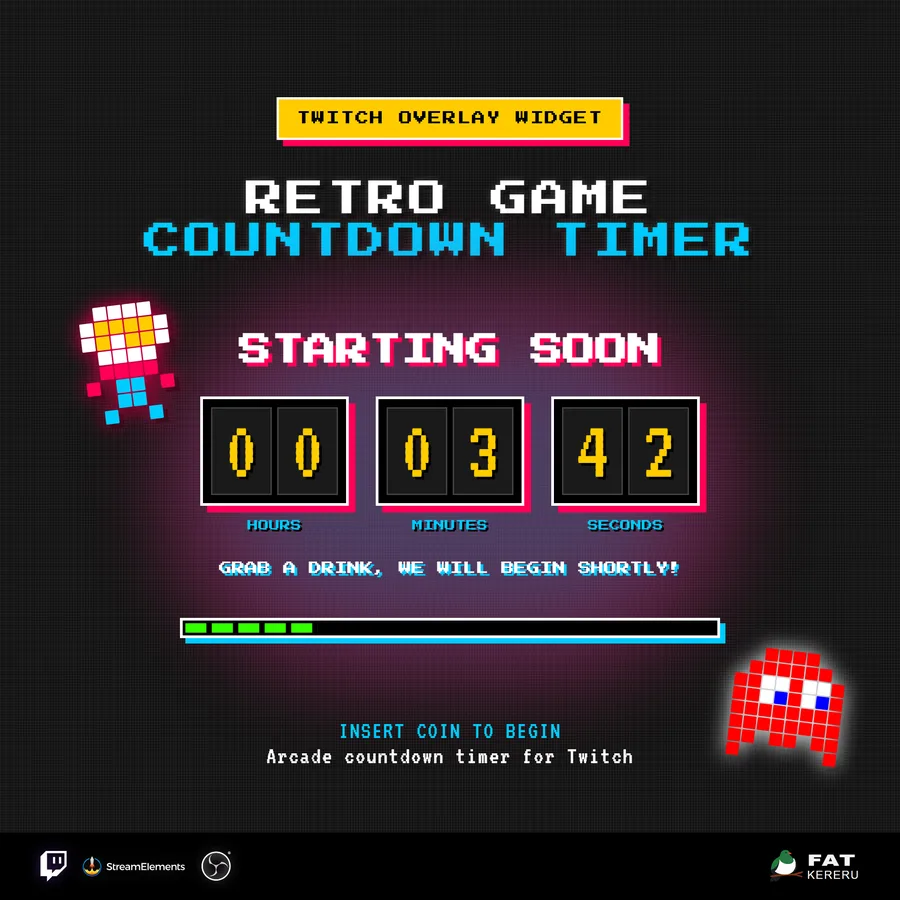
Retro Arcade Countdown
USD$14.70A retro scoreboard countdown with flexible timer modes and an animated pixel-hero finale.
Timer View details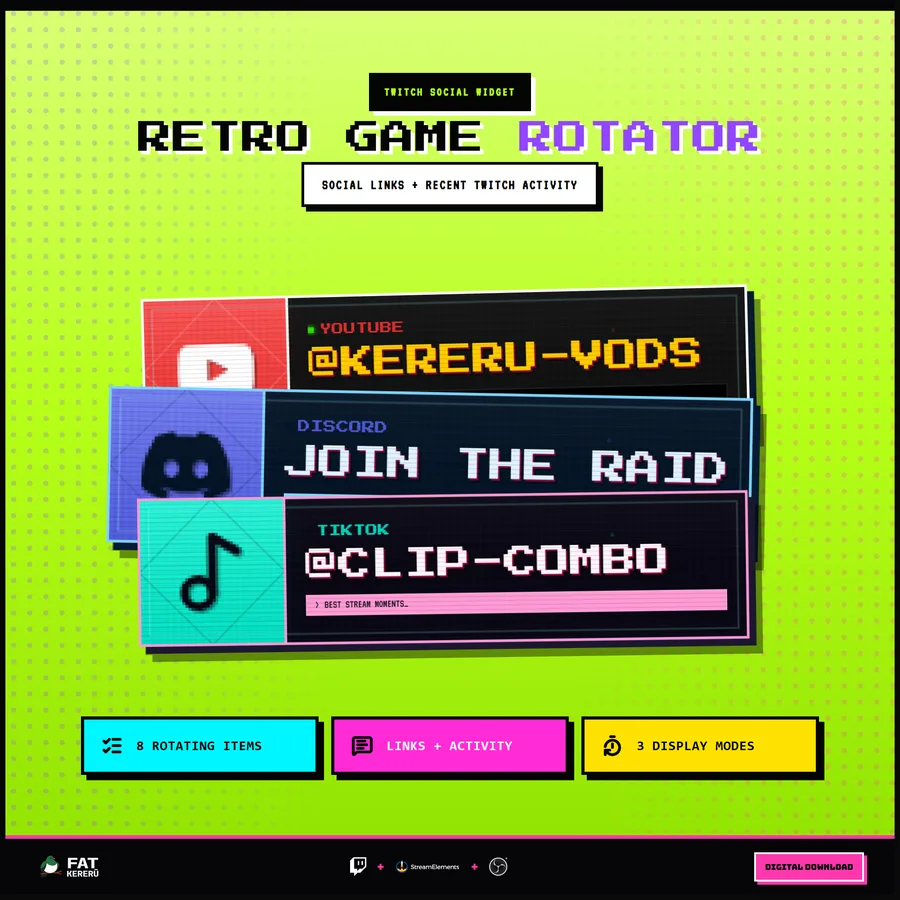
Retro Game Rotator
USD$15.00An arcade social panel that rotates through channel links, recent activity, commands, and creator messages.
Stream tool View details