
1 / 11
Chat widget
Bold Chat
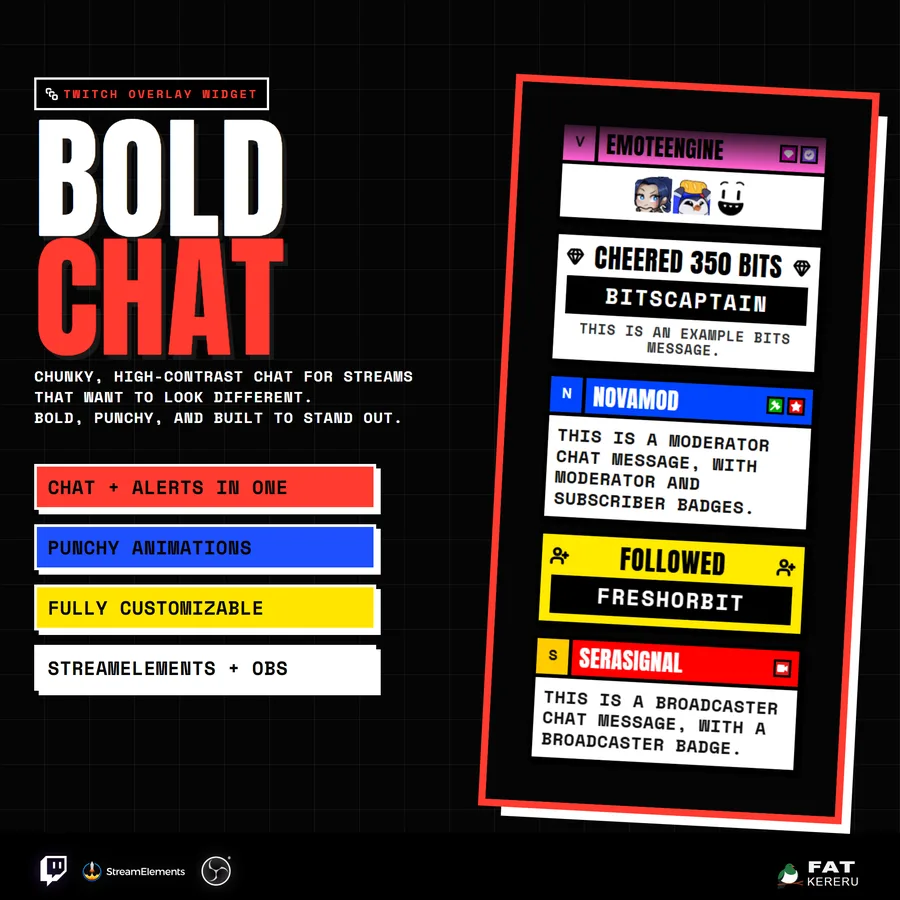
A chunky, high-contrast Twitch chat and alerts feed built to stay readable on busy streams.
What it doesv1.1.0
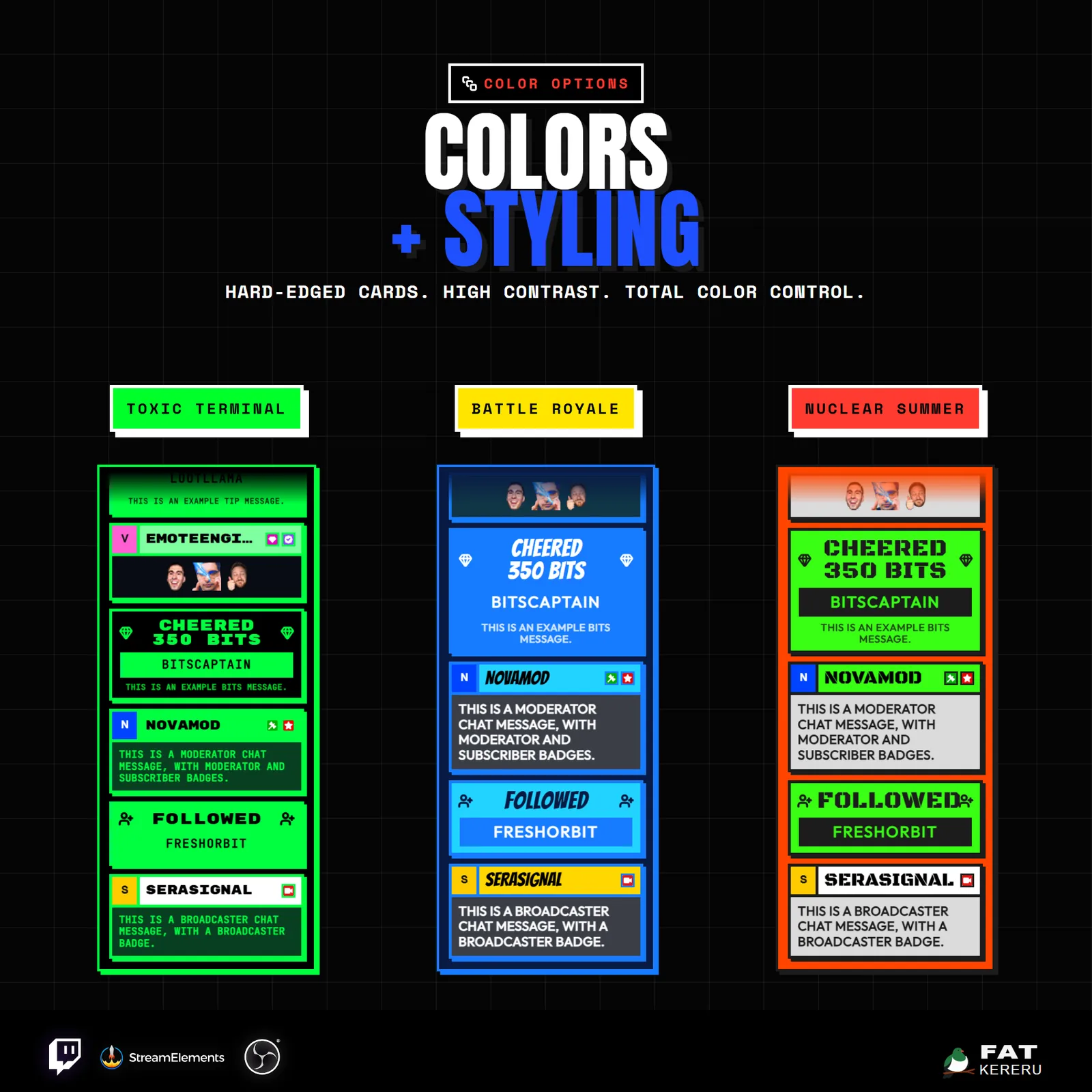
Bold Chat is for streams that want clarity without disappearing into a generic pastel box. Large cards, hard edges, and deliberate contrast keep messages readable at a glance while giving the overlay a confident visual identity.
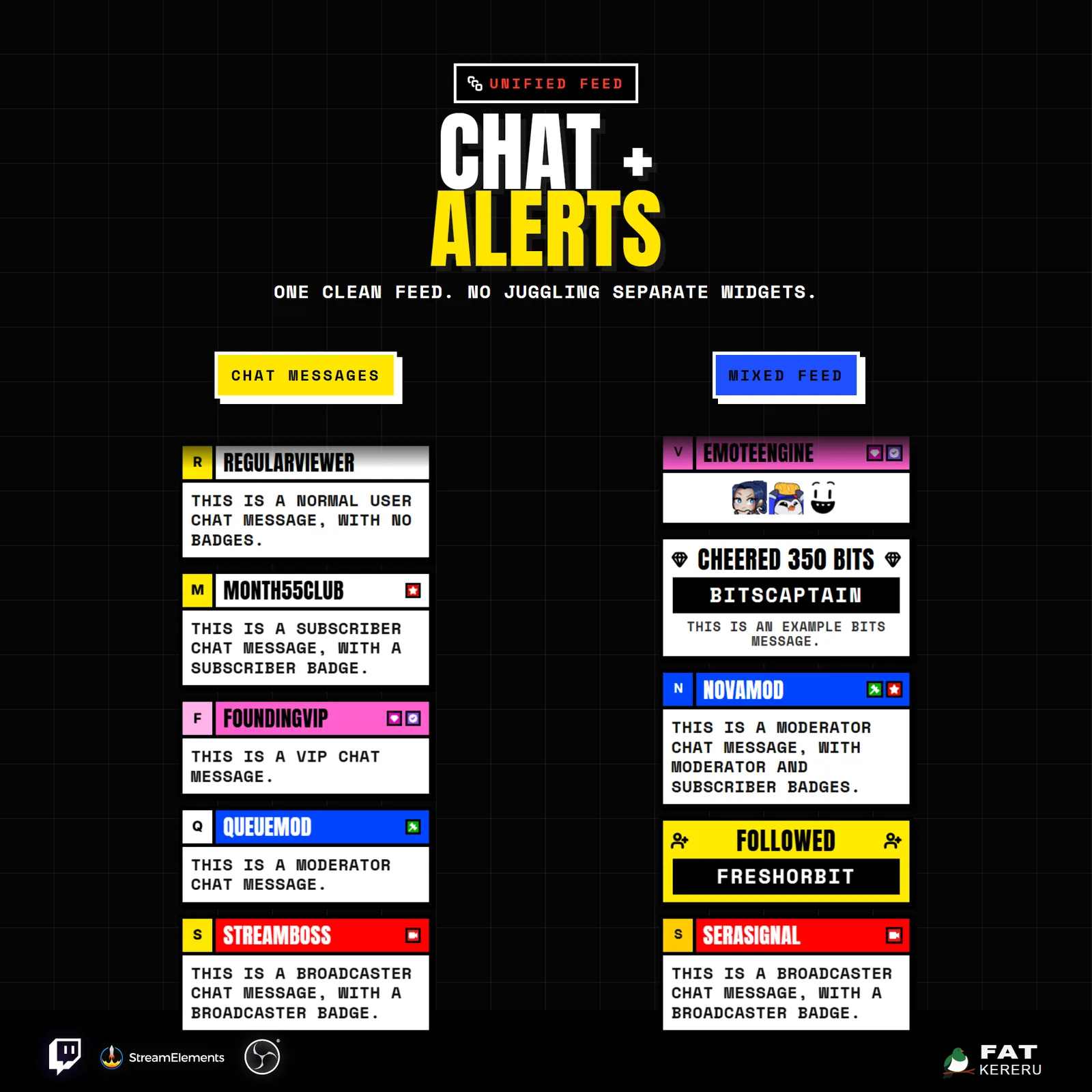
Chat and alerts share one flexible feed. Use the whole system together, switch off alerts for a dedicated chat overlay, or disable chat and keep a compact event feed. Colors, typography, avatar treatment, event styling, filters, timing, and sound slots can all be adjusted in StreamElements.
How it works
- 01Chat arrives
Twitch messages become large, high-contrast cards that are easy to read while you stream.
- 02Alerts use the same feed
Enabled follows, subscriptions, raids, cheers, tips, and redemptions appear alongside chat or on their own.
- 03Cards clear automatically
Choose the feed direction, how long cards stay visible, and how many can appear at once.
- 04Make every card yours
Adjust colors, avatars, icons, message wording, sounds, and the look of each alert type.
Works with
- Twitch
- StreamElements
- Any streaming software with browser source



Features
- Combined chat messages and stream alerts in one feed
- Hard-edged, high-contrast cards designed for readability
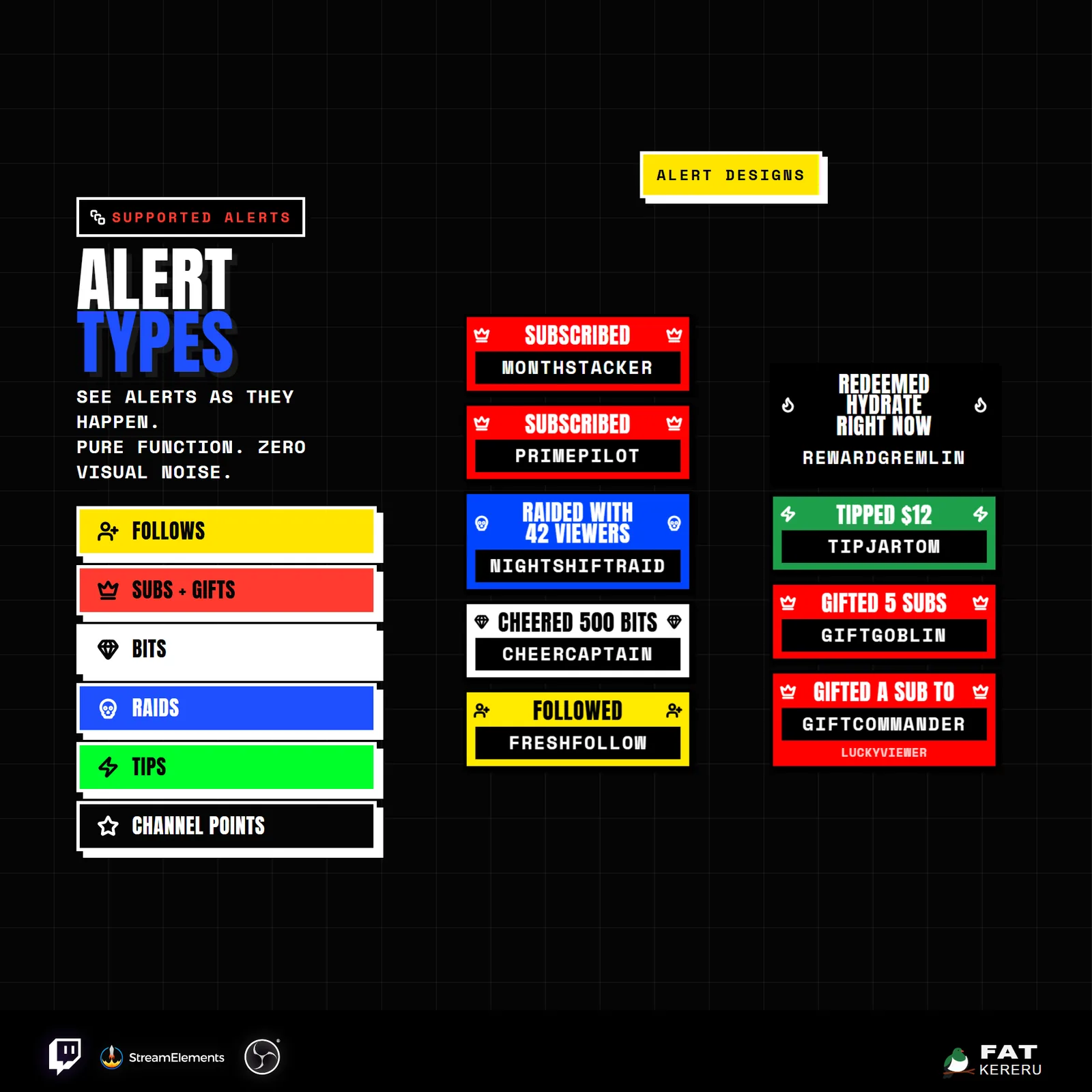
- Follows, subs, gifts, bits, raids, tips, and channel point events
- Chat-only, alerts-only, or combined display modes
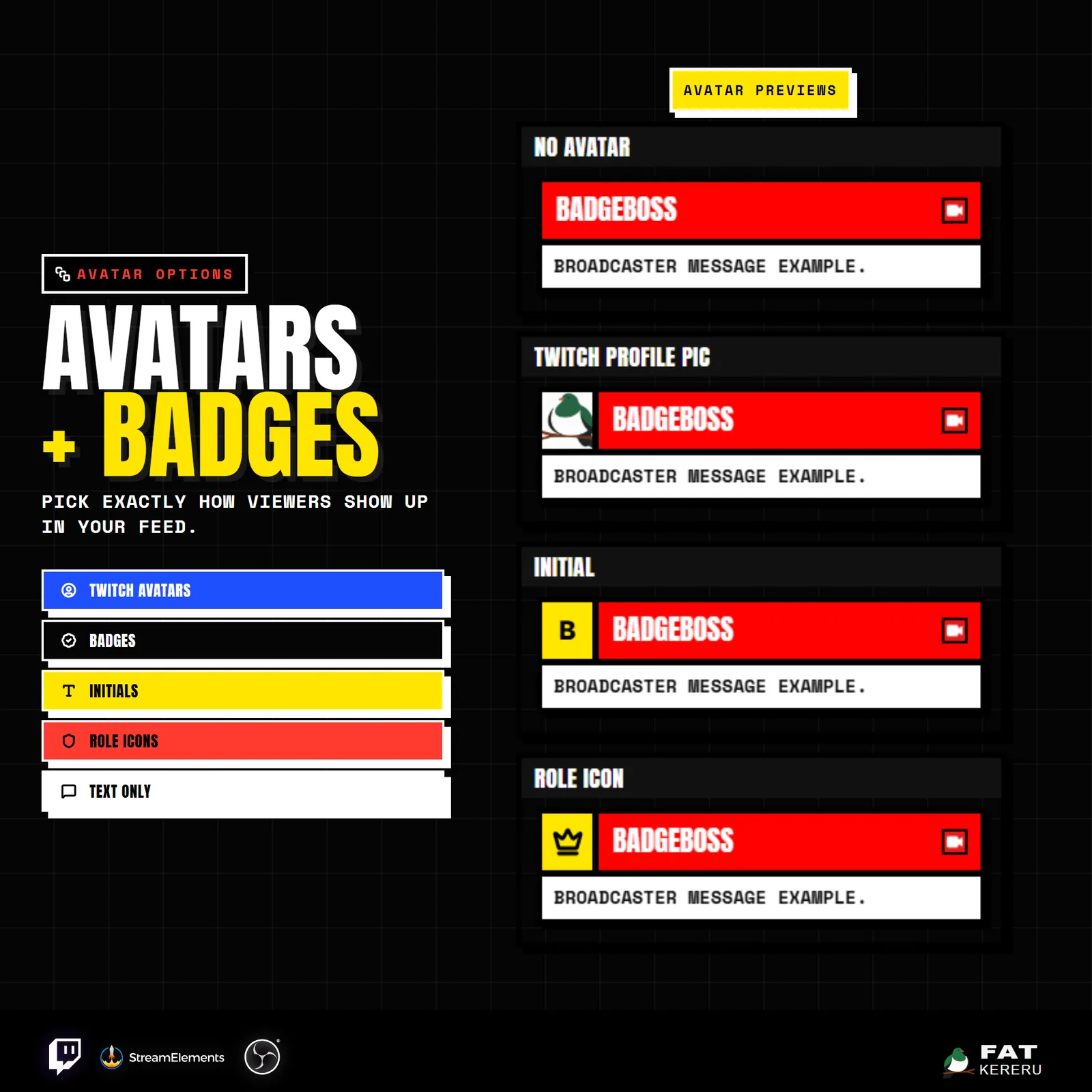
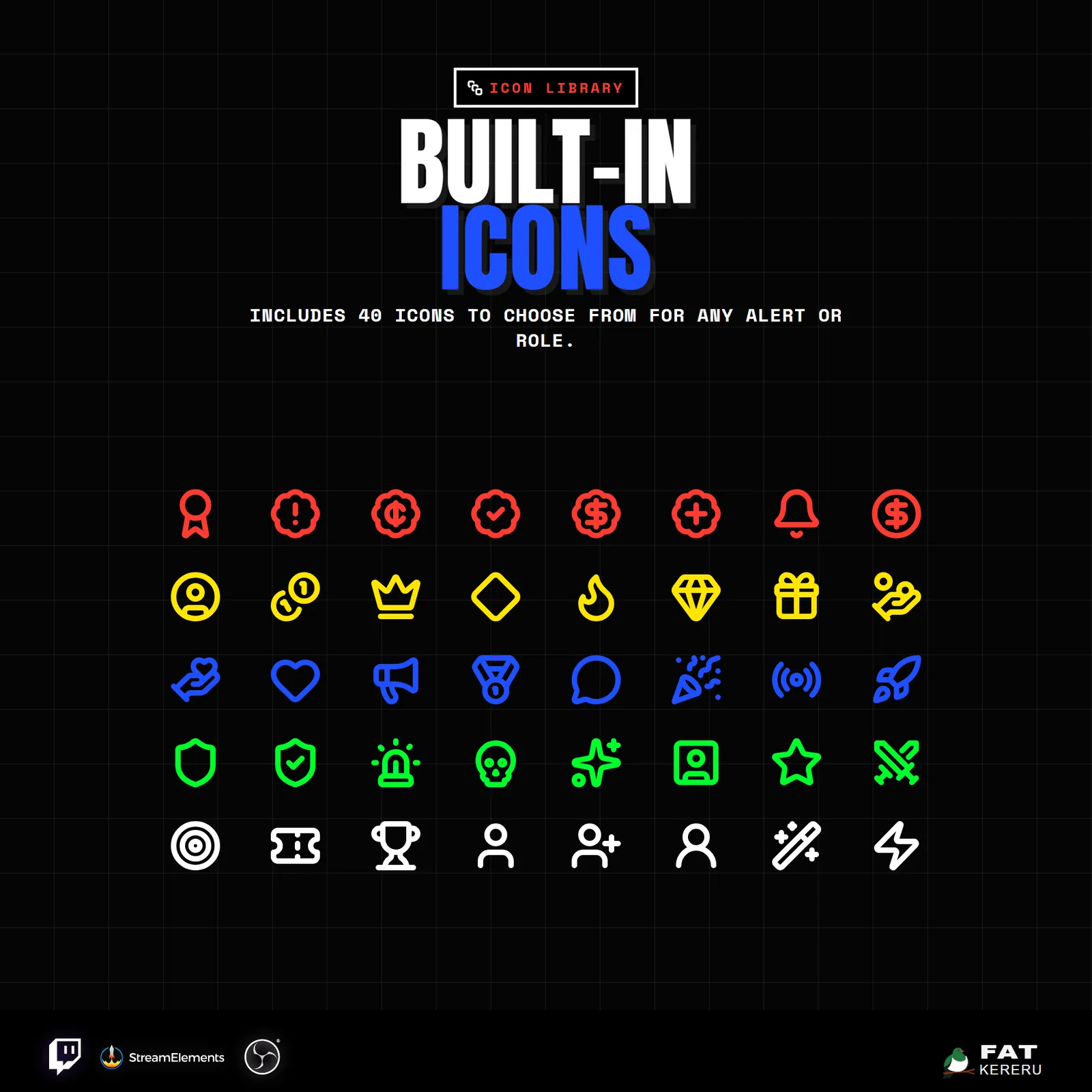
- Twitch profile photos, initials, role icons, or no avatar
- Per-alert colors, icons, message templates, and sounds
- Command and username filtering
- Jumbo emote support and configurable feed pacing
What you get
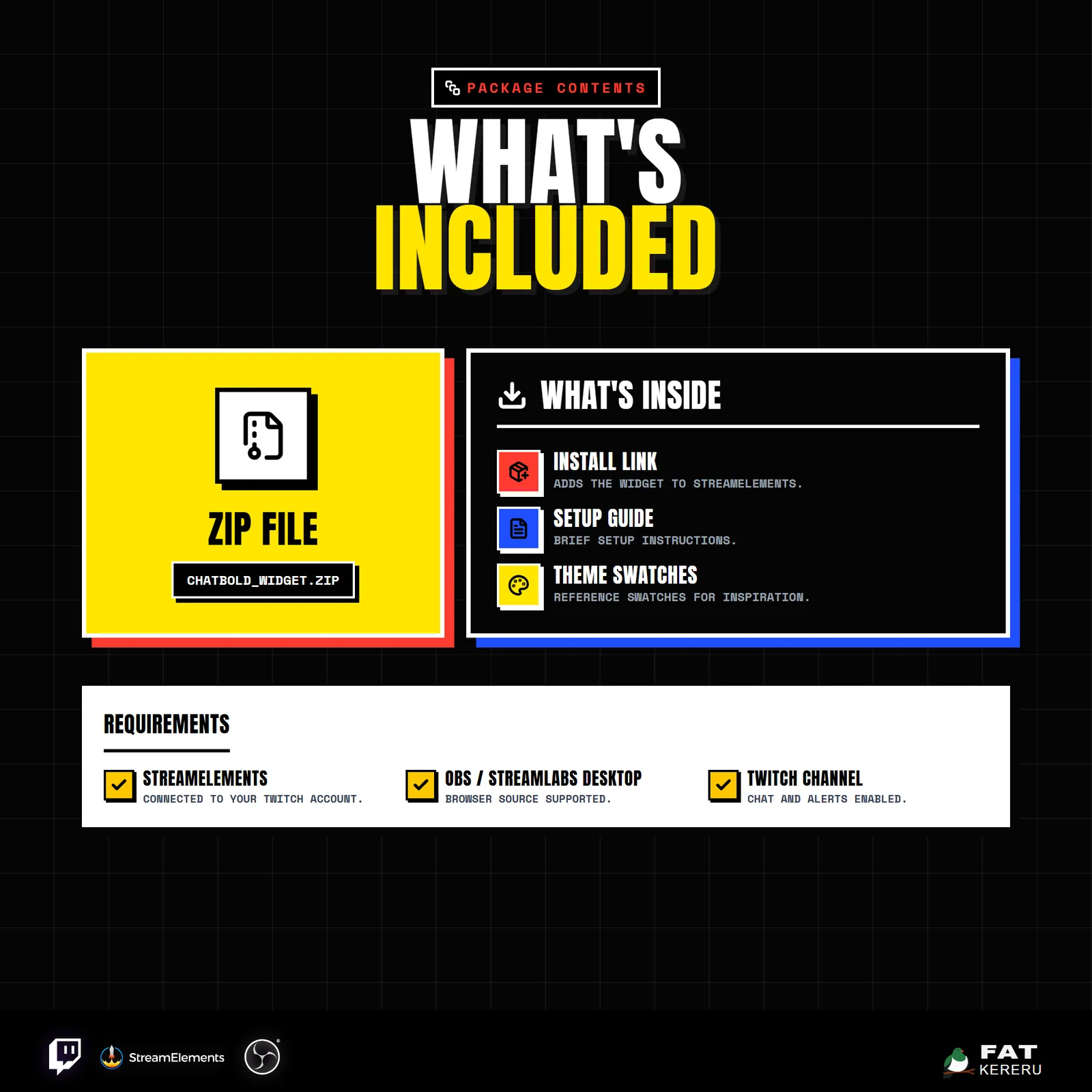
The product package includes everything needed to install, customize and keep the widget running.
- Quick Start HTML
Local start page with links to the installer and current online user guide.
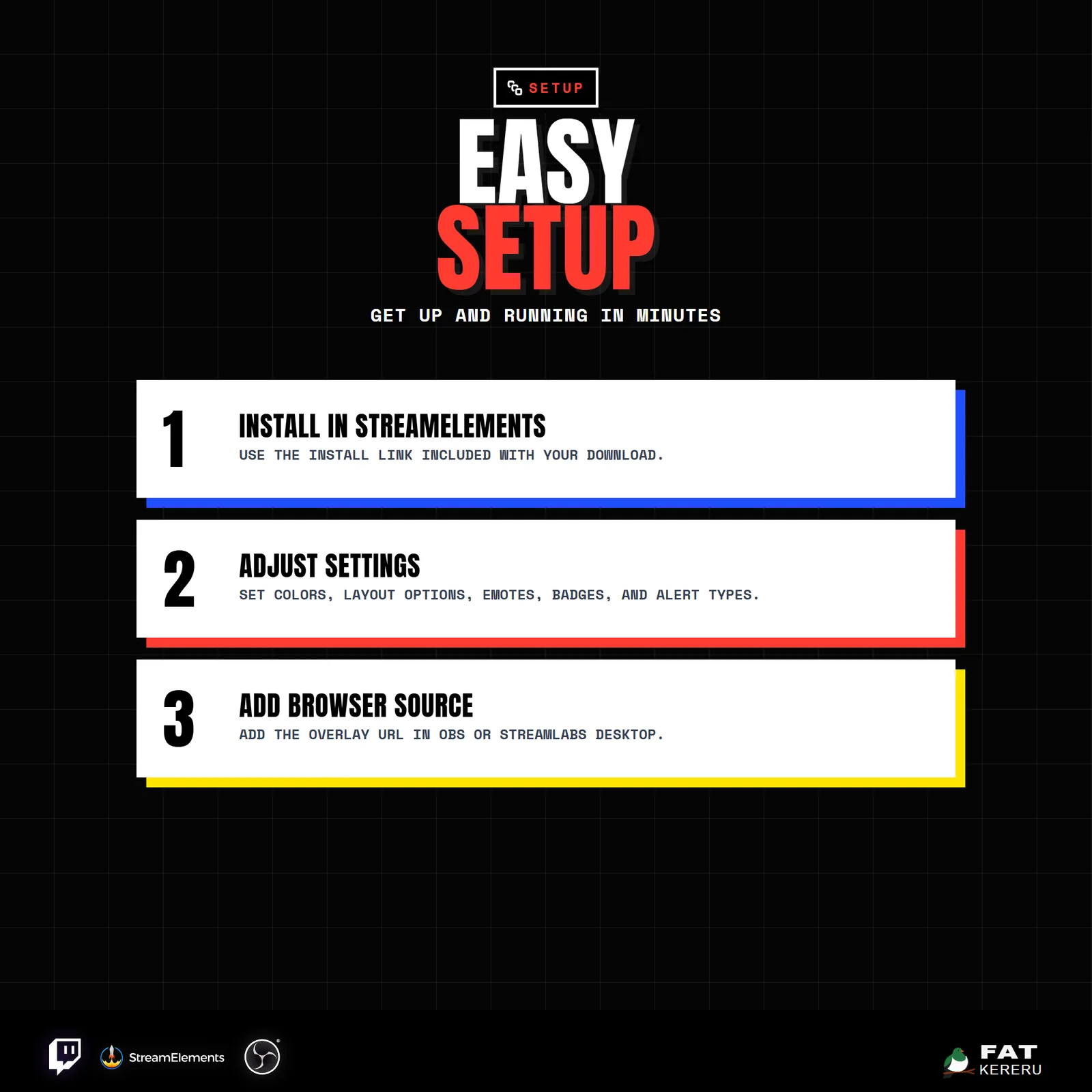
- Easy install
Add the widget to your StreamElements account.
- Included sounds
Sound assets used by the default sound settings.
- Theme swatches
Visual theme swatch reference you can open in any browser.
- Theme presets
Theme color values in a spreadsheet-friendly format.
Settings
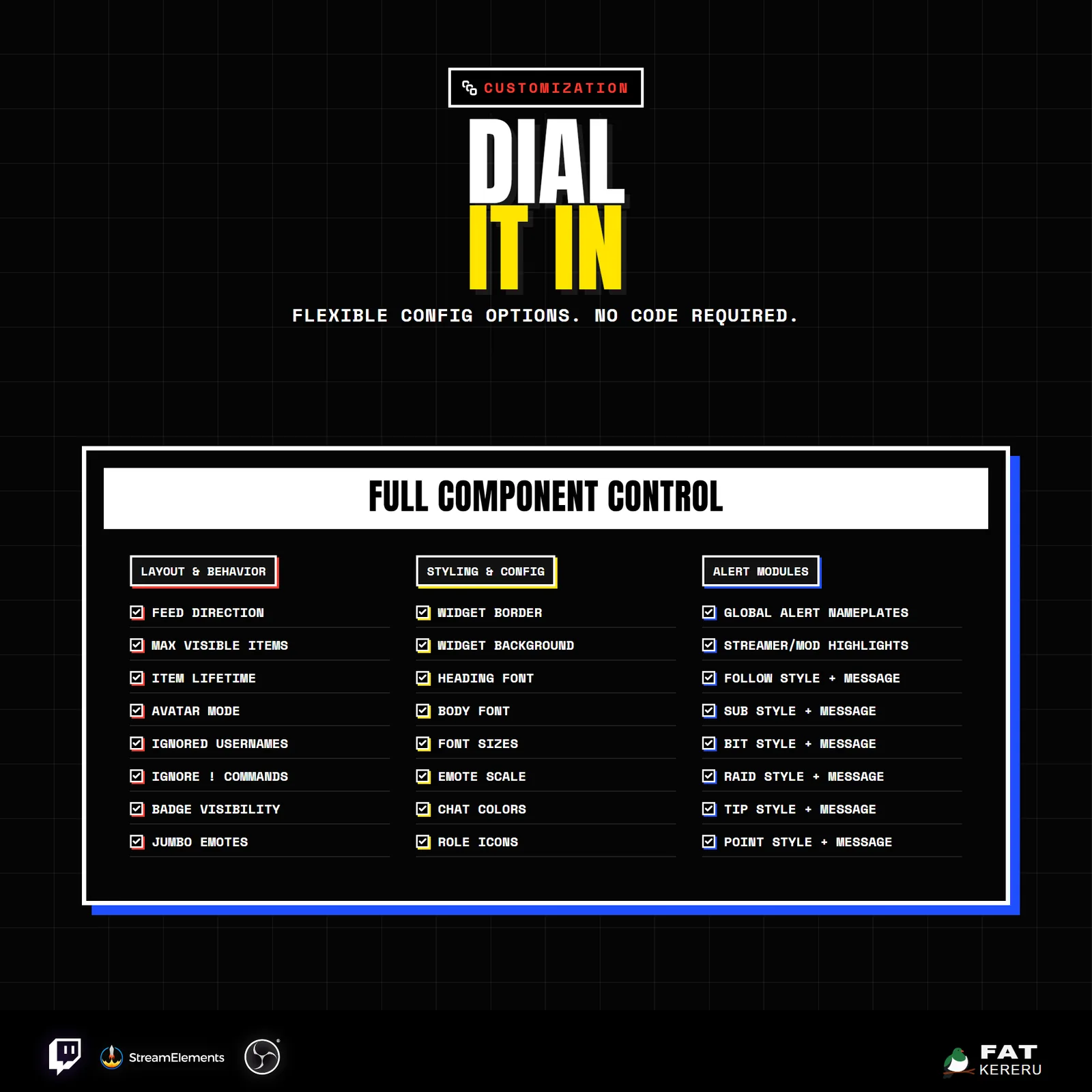
These are the controls you’ll find in StreamElements. Everything is adjusted with simple fields, switches, color pickers and dropdowns.
Layout & Frame9 settings
- Feed Direction
- Max Visible Items
- Item Lifetime (Seconds, 0 = Never Expire)
- Edge Fade Distance (px)
- Avatar Mode (Hidden removes left box)
- Show Widget Border
- Widget Border Color
- Show Widget Background
- Widget Background Color
Behavior9 settings
- Ignored Usernames (comma-separated)
- Ignore Commands Starting With !
- Enable Chat Messages
- Enable Subs
- Enable Bits
- Enable Raids
- Enable Follows
- Enable Tips
- Enable Channel Points
Sounds13 settings
- Enable Sounds
- Sound Volume
- Sound Cooldown (ms)
- Chat Sound
- Follow Sound
- New Sub Sound
- Resub Sound
- Gifted Sub Sound
- Community Gift Sub Sound
- Bits Sound
- Raid Sound
- Tip Sound
- Channel Points Sound
Chat Common11 settings
- Heading Font
- Body Font
- Chat Heading Font Size (px)
- Body Font Size (px)
- Message Border Color
- Show Badges
- Show Jumbo Emotes
- Emote Scale (%)
- Default Icon Cell Color
- Subscriber Icon Code
- Default Role Icon Code
Default Chat2 settings
- Default Chat Header Color
- Default Chat Text Color
Broadcaster Chat3 settings
- Broadcaster Icon Code
- Broadcaster Icon Cell Color
- Streamer Header Color
Moderator Chat3 settings
- Moderator Icon Code
- Moderator Icon Cell Color
- Moderator Header Color
VIP Chat3 settings
- VIP Icon Code
- VIP Icon Cell Color
- VIP Header Color
Alert Common3 settings
- Alert Label Background
- Alert Label Text Color
- Alert Heading Font Size (px)
Follow Alerts4 settings
- Follow Banner Background
- Follow Banner Text Color
- Follow Alert Icon Code
- Follow Alert Message
Subscriber Alerts8 settings
- Subscriber Alert Surface
- Subscriber Alert Accent
- Subscriber Alert Text
- Subscriber Alert Icon Code
- New Sub Alert Message
- Resub Alert Message
- Gifted Sub Alert Message
- Community Gift Alert Message
Bits Alerts5 settings
- Bits Alert Surface
- Bits Alert Accent
- Bits Alert Text
- Bits Alert Icon Code
- Bits Alert Message
Raid Alerts5 settings
- Raid Alert Surface
- Raid Alert Accent
- Raid Alert Text
- Raid Alert Icon Code
- Raid Alert Message
Tip Alerts5 settings
- Tip Alert Surface
- Tip Alert Accent
- Tip Alert Text
- Tip Alert Icon Code
- Tip Alert Message
Channel Points Alerts4 settings
- Channel Points Card Background
- Channel Points Text Color
- Channel Points Alert Icon Code
- Channel Points Alert Message
Related products
More from the Bold Collection
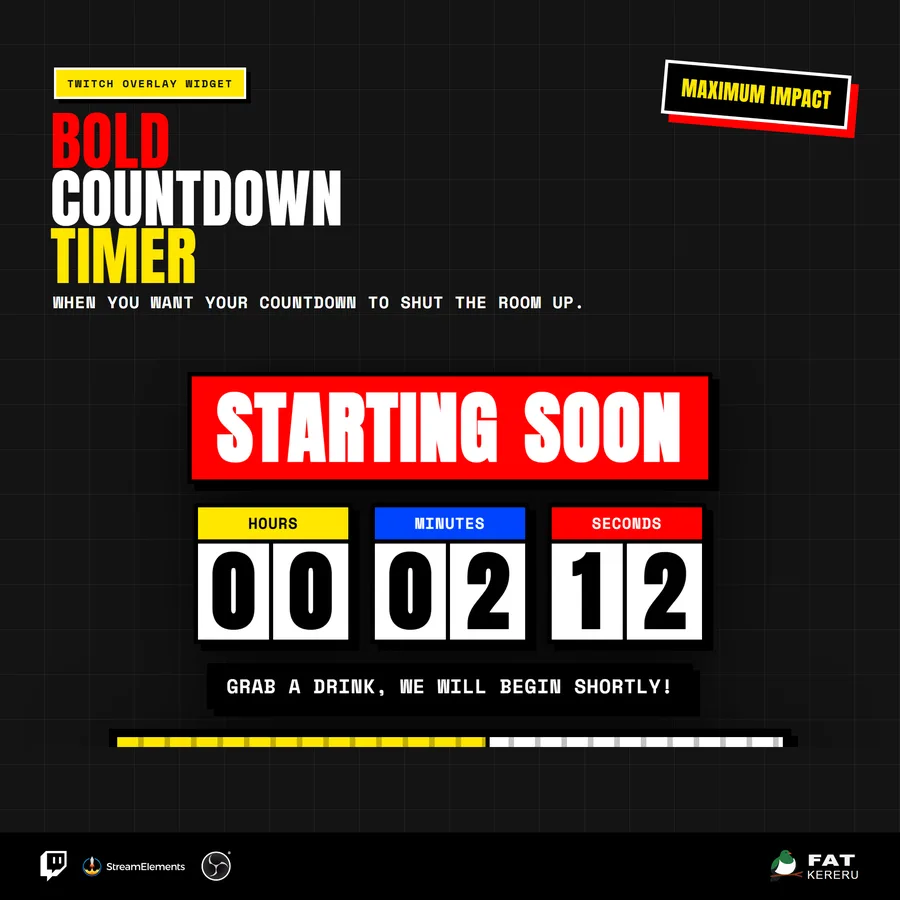
Bold Countdown
USD$14.70An oversized block countdown with animated digits, striped progress, and a block-burst finale.
Timer View details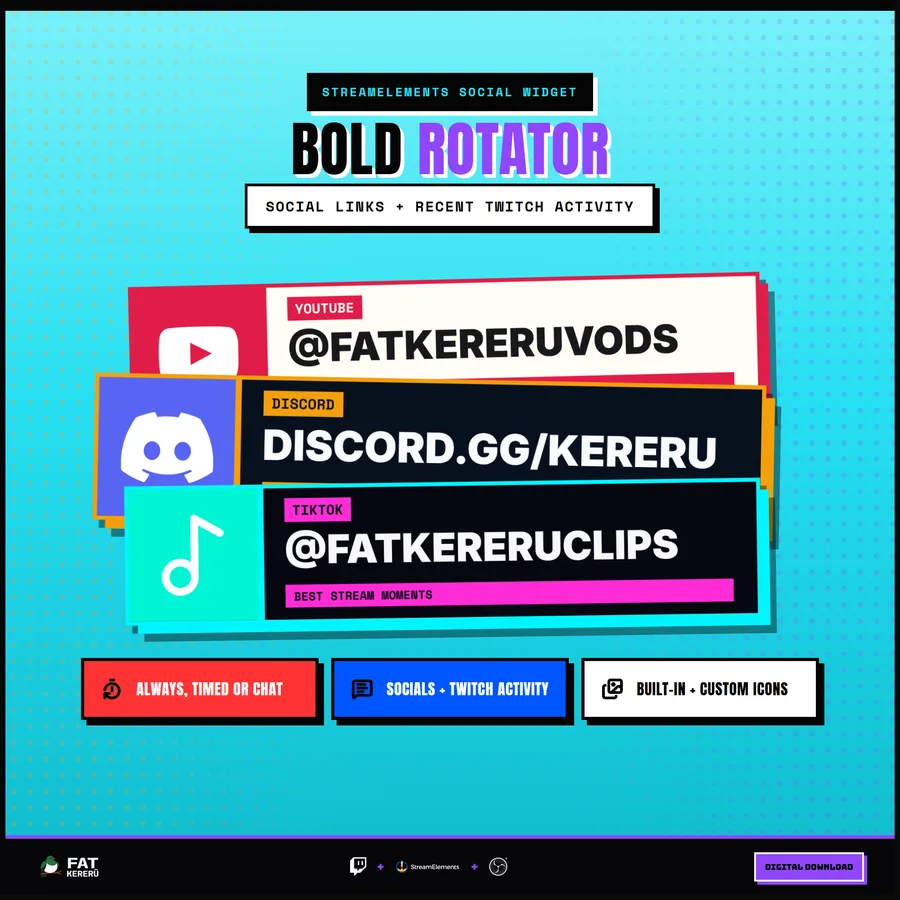
Bold Rotator
USD$15.00A high-impact social and information rotator with brutalist panels and flexible content slots.
Stream tool View details